
This relates back to my post on efficient use of computers last week. I have noticed that some of the things I do every day, other people never do. I am always amazed at the number of people who are not aware of basic time-saving shortcuts.
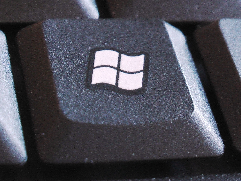 Many of these tips will not involve the mouse. Right now I am typing. I spend most of my time at the computer typing. If I can do something without chasing down a mouse (my hands are not on the mouse when I type), it will save me time. The Windows Key is a handy shortcut to the Start menu that doesn’t require touching the mouse.
Something I do many times every day is open a web browser. If your computer is setup with the default settings, your browser is the top icon in the pinned list (the icons at the top of the Start menu). Here is how I usually open a browser, if I am typing at the keyboard.
Windows Key
Down Arrow
Enter
With a little practice the whole process takes about a second. You can open the browser without the mouse and use the time required for the browser to open to find the mouse. By the time the browser opens, you are ready to browse.
I don’t know how many little tips I can come up with, but I plan to add one every day until I run out. Let’s see how long I can go.
That is an awesome idea and I hope you are able to do this. Keep these little tips coming. I have my protopage icon down in my task bar that I have to click on to open my internet. I am wondering if I can get the protopage shortcut to appear at the top of the start menu. That would be cool.
If you can get it to the “pinned” list, you can drag it to the top. The Start menu has All Programs at the bottom. Next up is the recently run applications. Above that is the pinned list. I have IE at the top, Firefox second and Eudora third. Those are the three programs I open most.
One thing I’m amazed at is how many people know about CTRL-C and CTRL-V but have never used CTRL-A
Each year more of my students seem to know about CTRL-A.
No one knows about Shift-Insert, Shift-Delete and CTRL-Insert. When the new keyboards with the double-long Delete key came out, I started stocking up on old keyboards.
I forgot to mention. If you are ever stuck with an old keyboard that does not have the Windows Key, you can use CTRL-ESC to open the start menu. It takes a little longer (two keys instead of one), but works.
Pingback: Alvin’s Educational Technology Blog » Efficiency Tip #38 - Pin Things
Pingback: Alvin’s Educational Technology Blog » Efficiency Tip #99 - Windows-1, Windows-2...
Pingback: Alvin’s Educational Technology Blog » News