
Without a doubt, the most used keyboard shortcut on my computer is Alt-Tab. I have used this since it was called the “Cool Switch” in Windows 3.1.
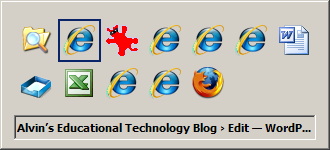
The Cool Switch lets you toggle between opened applications using only two keys. Press the ALT key located to the left of the space bar with your left thumb. Extend your index finger and tap (press and release) the TAB key making sure the ALT key is pressed continually using the thumb. When the desired destination application is highlighted in the pick list, release the ALT key. The selected application will come to the top and become the active application.
If the pick list is large, and you go past the desired application, the Alt-Shift-Tab keys will reverse the direction of the selector in the pick list.
The pick list is arranged so the last active application is always the first in the pick list. This makes toggling between two applications quick even if many applications are open.
TSPY=1.81
Alt-Tab is one I know about but don’t use much. I guess I’m just used to grabbing my mouse. (-:
I’ve been using computers for 20 years, but last night I learned (or perhaps re-learned) about Ctrl-A, which highlights everything on the page. I probably knew about that one somewhere along the way, but it wasn’t in the list of tips I commonly used. I’ll be using it much more now that I have a specific application within which it will really speed things up for me.
One of the problems with these short-cuts is that doesn’t seem to be a comprehensive list of them anywhere. They appear to have developed over time, with more being added each time Windows was upgraded.
Also, many of them are not intuitive, which mean they just need to be memorized, then used to be reinforced mentally.
Debbie, I found this site awhile back that may help you. I agree with you though, most of this stuff has to be memorized and practiced for one to become really efficient with it. http://www.jibaros.com/tips_prn.htm
To help you become efficient, you need to memorize the common tasks. There is a comprehensive list in Wikipedia (if your school isn’t blocking it).
http://en.wikipedia.org/wiki/Table_of_keyboard_shortcuts
By doing this series I hope to give you something more than a list of shortcuts. I want to add common uses to help you remember why the shortcuts are important. Over time, the important ones will stick.
Pingback: Alvin’s Educational Technology Blog » Full Screen