
Efficiency Tip #23 – Windows-Tab

This is something new in Vista. It works like Alt-Tab, but with a different presentation.
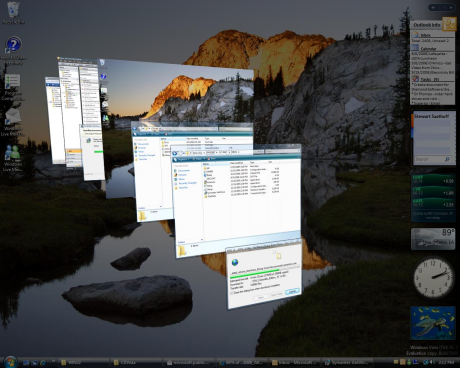
WindowsKeyTab

Hold down the Windows Key and tap tab. Full screen versions of each open window will stack like a deck of cards at an angle. As you tap the tab key, the top screen is shuffled to the bottom and all the other screens move up. It gives a more visual display of what is on each page.

This shortcut and the old Alt-Tab have added the desktop to the list of programs. This gives you one more way to get to the desktop (reduce all programs) in Vista.

TSPY=1.80

This entry was posted in edtech, efficiency and tagged . Bookmark the permalink.

4 Responses to Efficiency Tip #23 – Windows-Tab

  1. Debbie says:

    Alvin,

    This comment isn’t EXACTLY related to this tip, but I couldn’t help but notice your remarkably uncluttered desktop!

    The tech coordinator living at my house gives me a hard time because I dislike all but the most essential icons on my desktop (usually only 5). I have my most frequently used apps on the toolbar and the rest pegged to the top of my start menu, so I really don’t need much on the desktop. It’s nice to see that you follow a similar philosophy!

  2. John says:

    I just keep my most frequently used 234 items on my desktop (1280×1024 ). Sometimes, I try to neaten things up a bit by getting the desktop down under 200 items.

    But I don’t have to search for the documents, or drill down through a file hierarchy.

    If I get too many icons on the desktop, I just have to increase my monitor resolution. Again.

    TSPY = priceless.

  3. alvin says:

    John – My opinion of you just fell dramatically. The desktop is not a storage location. You can’t easily sort files by date, type, size or name. You always have programs open so it impossible to get to the desktop without messing other things up.

    I have five permanent icons on my desktop and one shortcut (to the wwwroot folder). I probably click on something on my desktop once a week. I use that folder shortcut via Windows Explorer… not directly from the desktop. I have Windows Explorer running all the time.

    If you can’t change your ways, add another monitor. I have two LCDs for an effective 2560×1024 desktop.

  4. John says:

    I use my virtual desktop the same way I use my physical desktop. The things I’m currently working on, and the things that I use most frequently, can be found there (sometimes after a bit of searching :-) ). They’re arranged geographically, and if there are only a couple documents related to a particular project, they’re grouped by proximity, which is faster than drilling through a hierarchy of subfolders.

    In reality, there are only about 50 items on either of my desktops, but I could fit 234 if I wanted to.