
Digital Photos

I have a lot of digital photos. I’m on my fifth digital camera and I haven’t taken a picture with a camera using film in more than six years. My archive has almost 10,000 pictures. All my pictures are on my home server. I would like to have them all indexed and in a database (very time consuming). So this weekend I looked around for a way to automate the process.

It was easy to get all the file names into a database. I dumped all the file names to a text file using a command prompt trick.

DIR /S C:\PICURES>MyPictures.TXT

That saved all the names into a text file. I then imported that into my SQL server. (I’ll skip those details.)

Then I setup a web page to connect to that database. I can search for a picture (by file name) and display it. The problem came when I tried to show thumbnails of a list of search matches. Most of my pictures are bigger than 1024×768. If there are ten matches to a search, it takes a long time to show those big pictures in a preview list. (My parents only have dial-up and they will be looking at these pictures.) I needed something that would automatically shrink the pictures to thumbnails.

I did some Googling and I found several freebies. The one I ended up using was ASP Thumb. I use Windows Servers and ASP scripting, so it works with the technologies I have and understand.

Now when I search, this utility resizes each picture to a 100×80 thumbnail. These show up on the screen very quickly. When I click on a thumbnail, it shows the full sized picture.

Now I just need to put the full descriptions into the database. I set it up so that I can record the event (when/where the pic was taken) and the people in the picture. I just need some people with free time on their hands to enter everything. I think I’ll write it up and put it out to bid. I have four kids… and they are always looking for ways to make a little extra cash.
Posted in edtech | Tagged | Comments Off on Digital Photos

Wire Testers

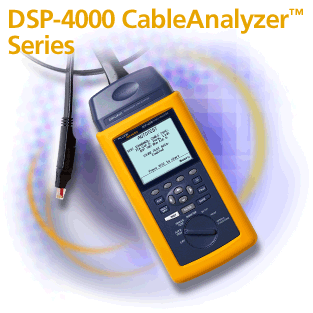
Today I decided to learn about wire testers. The networking guys we running some new wires right outside my office. They had two yellow devices. One device was placed at each end of a new wire.

http://www.flukenetworks.com/us/Cabling/Copper+Cabling/DSP-4000+Series/Overview.htm
Once connected, the one end would give a readout that “rated” the wire on its ability to carry a networking signal. I had them test a couple of my wires that I thought were giving me problems. Turns out there two of my wires were bad. They had electrical shorts or breaks in the copper.

The tester shows several useful pieces of information. The easiest thing to understand is a “short”. This just means that there is a break in the solid copper. If the wire is moved (twisted, pulled, etc), there may be an electrical connection or there may not be. Shorts are bad because they are unpredictable. The other useful reading was “cross talk”. This is when on strand of the wire has a signal that interferes with another strand of the wire. This can be caused by neglect (too much pulling or twisting of the wire).

The tester I used today was more than $1000. So I don’t think I’ll be buying one for myself any time soon. I did find out that the UF has a set that I can use if I need to.

Posted in edtech | Tagged | Comments Off on Wire Testers

There File, Here File

It worked. I ended up at the office today without a file I had to have. I needed a syllabus from last year, and it wasn’t on my laptop. Actually, the file was on my laptop, but I left the laptop at home today because I just suppose to be in meetings.

EFTP did the trick. I used a lab computer and downloaded the free client (free is nice). Sixty seconds later I was downloading my file.

The trick was using port 21 on the firewall. I tried it with a different port (thinking it would confuse the network scanners looking for an FTP server). Once I opened up port 21, everything worked as it was suppose to. Now I just check the logs daily to make sure there isn’t anything “funny” going on.

Posted in edtech | Tagged | Comments Off on There File, Here File

Here File, There File

I have a new computer dilemma. A couple of months ago I did something I hadn’t done in years. I bought a new computer. I do this about once every six or seven years. I don’t want you think I use the same computer for more than five years. I don’t. In fact, I usually get a new computer every year, but it’s always a laptop. This time I got a desktop.

I still have a nice laptop that I tote to the office everything. Here’s the problem. I work at home in the evening (on the desktop). Then I take the laptop to the office. I have a 512MB USB drive that will hold everything I do in a evening, but I always end up at the office without that one file I really need.

So I’m looking for a secure way of getting back to my home computer (security is very important… must be encrypted) from outside the firewall. It also has to be easy to use.

I have a cable modem with an IP address that’s mapped to a domain name (using DYNDNS.ORG). Getting home is not the problem. Once I’m here, I have to get through the firewall which already has HTTP and HTTPS mapped to my web server and secure mail server, respectively.

FTP is no good (not encrypted). I’m looking at encrypted FTP, but I need something that is FREE. I found EFTP, but it wants to use some dynamic ports that my firewall doesn’t seem to want to automatically open.

I’m still playing around with it.

Posted in edtech | Tagged | Comments Off on Here File, There File

Google Desktop

Did you ever misplace a file on your computer and wish there were an easy way to find it? Now there is. It’s called Google Desktop. If you know how to find things with the Google web site, you already know how to find things with Google Desktop. This free download (http://desktop.google.com) installs easily and then creates a database of everything on your hard drive. To file something, click on the desktop icon. Your web browser starts and the Google Desktop application is loaded. Use the tool as you would use the regular Google web site to find something on the web. The difference is that your files make up the database that is being searched.

Google Desktop will find all your normal files (Word, Excel, PowerPoint, Pictures, Movies) by typing part of all of the file name. If your file contains words or other indexable data, you can search by that criteria as well.

All “hits” are listed in your browser as links. Just click and open the file.

Ever see a cool website on your computer and forget the URL? Google Desktop also indexes all the things you open in your browser. Just type in a few key words that were on a web site you visited in the past few days and Google Desktop will find that URL for you.

Posted in edtech | Tagged | Comments Off on Google Desktop