
Over lunch I was talking with Buzz. The topic was digital photos. I take a lot of them. Last weekend I took about 400 pictures. Annually I take about 15,000 photos and have done this for the last several years. Buzz asked how I was ever able to keep track of those pictures. My answer – “folders”.
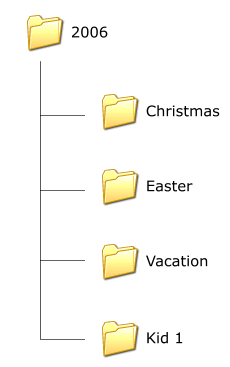
Everything gets a folder. Without a little planning, I could easily end up with hundreds or thousands of folders all over the place. Here is how I avoid that.
1 – All the photos from any given year go into a folder with that year’s number. Right now all my photos are going into a folder called “2007”. All of last year’s photos are in the “2006” folder.
2 – Every family member gets a folder. I have five kids. Each one gets a “personal” folder inside each year folder.
3 – Personal folders have folders for each major event. Each kid has a birthday and we take a lot of pictures on that day. For this reason, every personal folder has a “birthday” folder in it. If I am looking for the 2005 birthday pictures of Kid #3 (we have so many kids we have to number them), I look in
\2005\kid3\birthday
4 – Major family events get their own folder in the “year” folder. For instance, Easter is a big family event. Not only will there be pictures of our kids, there will be pictures of extended family members. All of last year’s Easter pictures are in
\2006\Easter
If it’s an event that covers multiple days, the “special” folder can end up with folders of its own.
\2006\Christmas\At Home
\2006\Christmas\At Alvin’s Parents
\2006\Christmas\Band Concert
By the time we add “personal” and special folders, there are about two dozen top-level folders that cover everything. Each year, as we add new pictures, we add the extra folders as needed. As it is right now, none of the kids has a birthday. None of the “personal” folders have a “birthday” folder yet. That will get added when we take some birthday pictures.
Every time new pictures are added to the collection, I synchronize my picture folder with a share on the server. This gives everyone in the house the ability to get to all the photos. Where they go from there, I have no idea.
My wife and I do the same thing as much as possible. We take about 1-2 thousands pics a year and organize them per child (3 of them) per month. For example, my newborn son is 4 months old so he has a folder on the desktop called Grayson. Then he has a sub folder in that folder named 1st year. Then we have 12 sub folders within that for each month. Then a sub folder in each month for special events like baptism, birthday, (first beer- ha ha) and so on… I am also in the process of stressing the importance, to my colleagues (teachers), of folders and organization. It only takes a few seconds to create a folder. I am tired of going into teachers computers and seeing a desktop full from side to side and top to bottom with files and no folders. I guess it they are happy, then so be it….
Todd
Wouldn’t it be a lot easier to use Picasa (on Windows/Linux) and iPhoto under OS X? That way you can tag your pictures, so if you wanted to find all your pictures of Kid #3 at Christmas, you could just do a search with those tags. They automatically keep the photos organized by date and “film roll”.
Those programs also make it very easy to backup your pictures and store them offsite. I have around 7,000 pictures in iPhoto. I create an encrypted disk image of each year’s pictures and upload them to my Dreamhost account for offsite storage.
Alvin: having had both you and Mr. Collins held up as tech deities (and knowing that Todd is fast working toward minor deity status), I am SHOCKED to discover that you guys are actually closet photo organization Neanderthals! (-:
Ok…I confess that back in 1998 when we first got a digital camera, the multi-level folder method was how we used to store our pictures. But it’s the 21st century and photo organization and storage has come a long way, gentlemen!
The problem with folders is that they are time consuming to create, allow you to view your pictures only one at a time, and don’t provide an efficient method for cross-referencing. I used to try to rename the pics to something more helpful, which also took lots of time. With the folder method, if you DO try to cross reference, you are usually forced to create multiple copies of the same image, so space quickly becomes a problem.
Even though your method is currently working, Alvin, in just a few years, you are going to have more than a few dozen top-level folders – especially if the kids haven’t had birthday yet. And wait until they get into school…it gets crazy.
I am a photo organization and memory preservation consultant. Since I help people organize their photos and capture the stories behind them (and this is NOT your grandmother’s scrapbooking), it is essential that I, myself, am organized!
Creative Memories’ “Memory Manager” software is a simple and elegant with more sophisticated and intuitive features than the popular programs Picasa or Photoshop Elements. And a $40 with free lifetime upgrades, it’s less than half the price.
As for backups, CD’s and DVD’s are most people’s preferred methods, but they are VERY unstable. Ryan’s on the right track in uploading them offsite, but you must find a secure and long-lasting site that doesn’t limit your storage capacity and won’t go under with no notice in this age of up-one-day-down-the-next sites.
With Memory Manager, you can make a shadow copy of everything automatically. This is where having a home server comes in handy! For non-tech people, I recommend an external hard drive or flash drive. (I do also upload our photos to Creative Memories PhotoCenter which offers unlimited storage in terms of space and time.)
Husband John already says this comment sounds too much like a commercial, so I will leave you with a link to my blog for further information (http://12amusings.schinker.org).
The general point is that the folder system is not particularly elegant, efficient, or searchable – Memory Manager is all that and more. Check it out for yourself!
Pingback: Traveling Down the Information Backroad » Untitled
I guess I should have completed my post by saying that I do use Picasa [http://www.trustyetc.com/trustyblog/?p=26] to browse through all the photos I have stored in my folders, crop and do quick color adjustments. Nothing beats a graphical browsing tool. I also use Picasa to organize files whenever a cheer leading picture gets mixed in with photos from band camp.
I haven’t found an easier way to mass-post pictures on the web than with PicasaWeb (built into Picasa).
I try to dump the memory card every time I take pictures. When I do that, I create one folder named to describe the event photoed. That’s the end of the messy job of creating folders. I do have to consciously place that folder into the “current year” folder, but I haven’t messed that one up yet.
Managing with folders is the only way to go. The time it takes is minuscule compared to the time required to scroll through five or ten thousand photos looking from something.
Every few months I burn all the pictures to DVDs and give my parents a copy. I keep another copy in my office at UF. I do the same with my data backups [http://www.trustyetc.com/trustyblog/?p=22].
Pingback: Alvin’s Educational Technology Blog » Efficiency Tip #41 - Folders
Alvin,
I have to respectfully disagree about the multiple levels of folders folders being the only way to go. Memory Manager has truly revolutionized photo sort and search – and the more photos you have, the better it will work for you! Yur system seems to work great for you, but please check out http://www.cmmemorymanager.com for more details. I truly believe that this product is a better way to sort, organize, store, and retrieve pictures than any other program out there.
As for using DVD’s as backups for photos – they are really quite vulnerable to damage. They also build-up over time, especially with the number of photos you take. Memory Manager has a neat feature which automatically creates a duplicate “shadow” copy of itself elsewhere and updates every change when the program is closed. I use this feature to backup to a server so I don’t have to deal with all the DVD backups or figuring out what was or wasn’t backed up.
Deb,
You may be generalizing a little too much. CMMM may be great for organizing photos, but it won’t help with your documents, spreadsheets, PowerPoints and web pages. Judging from the screen shot at the link you provided, CMMM does use folders. To the left of the pictures is clearly a multi-tiered folder structure. It looks like CMMM manages the folder system so that it a user doesn’t have to manually do it.
As a teacher or student using multiple computers in a school, keeping files organized is critical. My students use USB flash drives. On those drives they use the “one folder per project” rule. A typical student will have four or five courses each semester. Each course will have four or five projects. A project may have as many as ten supporting artifacts (documents, pictures, presentation). This could amount to 250 individual documents each semester. During a four-year program, that’s 2000 documents. Without planned file management (using folders) it will be complete chaos.
DVDs are but one backup solution. At fifteen cents per disk (that was the cost of the last batch I bought), there are not many less expensive options. I have thousands of DVDs in my archives and I have never had one give me problems when I needed to retrieve something. I also have CDs going back to the late 90s. The same goes for them… I haven’t had problems getting to old information.
I take care of my archives. They are in a dark, cool closet in cases.
Personally I use USB hard drives for my day-to-day backups. It’s the only way I can afford to backup all 130 GB of my data on a daily basis.
Alvin,
I reread my post and it does seem unintentionally over-generalized. In regards to organizing documents, I totally and whole-heartedly agree with everything you’ve said about folder structure in efficiency tip #41! Folders are indispensible and sorely under-utilized by most people. It doesn’t take much time to set-up a very intuitive system where virtually everything is easily retrieved.
Further, I recommend people use a similar folder structure for email. I often have people request copies of emails from me because they know I can put my hands on them in seconds.
Photos are a different story, though. Although chronology is one obvious way to organize photos, sometimes it is cumbersome for retrieval. Even though Memory Manager appears to use a traditional folder structure, the major difference is that you can have one picture in several different folders WITHOUT having multiple copies of the picture residing on your hard drive. This tagging system saves space and makes non-chronological searching much faster and easier.
It is also not necessary to create different folders for different dates of the same reoccurring event (like Christmas) because there is a built in time-scale feature. So all “Christmas” pics can go in the same folder and the time scale tool allows you to pull photos by date using specific or fuzzy logic (“December 2005” or “winter 2005”).
For example, my daughter Emily recently had to do a “Marvelous Me” presentation about her life. If my photos had been organized chronologically in different folders, I would have had to open many, many folders to pull the relevant pictures from her 7 3/4 year life span. Instead, I was able to select the “Emily” folder so she could choose from any picture that had her in it. You may have a similar set-up with traditional folders, but that means you are making multiple copies of the same picture in order to cross-reference.
Similarly, your lovely daughter could make a neat father’s day gift by selecting the “Kayla” folder and the “Alvin” folder. The program allows you to speficy whether you want to see all photos in both folders or just the ones that overlap between folders. By selecting from the pictures found in both, she can quickly to do a special album or slideshow about the two of you (think venn diagramming here).
This cross-referencing and tagging functionality is what makes this program unique and, in my mind, superior to a traditional folder structure on a hard drive.
As for backups, your thoroughness is probably the exception to the rule. I can’t put my hands on the source of my statistic, but I read recently that something like one out of every 3 digital photos taken and meant to be saved are mistakenly deleted. I can’t tell you how many people I meet who 1) leave their pictures on their camera cards and just buy new cards (really!) or 2) leave all their pictures on their computer thinking they are “safe” without backing them up. The computer is the new 21st century version of the photo shoebox under the bed. (-:
I still am very distrustful of the long-term viability of data storage. In the 14-16 years since my husband and I left college, we’ve migrated data at least three times. (See here:
http://staff.bbhcsd.org/schinkerj/archives/2007/02/06/print-is-dead/
and here: http://staff.bbhcsd.org/schinkerj/archives/2007/06/01/obsolete-media/
for details). This is a far cry from the 140+ years and counting that traditional printed photographs last (albeit properly stored and cared for).
I think this discussion of backups and long-term storage will continue to evolve as data retrieval problems escalate for the common user.
Pingback: Alvin’s Educational Technology Blog » Efficiency Tip #75 - Bulk Rename
Pingback: Memory Management « 12AMusings