Efficiency Tip #3 – Windows-E

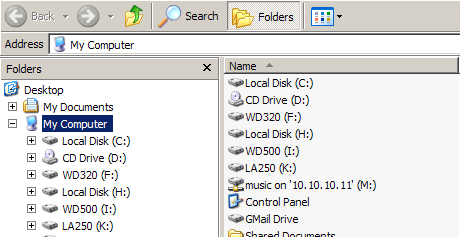
The second most used shortcut combination on my computer is Windows-E. This explores My Computer using Windows Explorer.
WindowsExplorer

I have seen other people use variations on this shortcut. Some right-click the Start button and select Explore. This explores the Start button and opens Explorer in the

C:\Documents and Settings\UserFolder\Start Menu

I have never stored anything there or wanted to retrieve something from that folder… so starting Explorer there isn’t the most efficient practice.

The equivalent mouse movement would be right-clicking the My Computer icon and selecting Explorer. The painfully slow way would be Start/All Programs/Accessories/Windows Explorer. This explores My Documents which is probably close to where you are headed. It just takes six times as long to get there as Windows-E.

Here is an extra bit of advice. Never double-click My Computer to open Explorer. This puts you into the default view with the context sensitive menu on the left instead of the folder structure. If you do double-click My Computer, follow up with an immediate click of the Folders button under the menu bar. Using the Folders view gives you two panes of view. This is especially useful in copying or moving files. You can be “in” the original folder and “see” the destination folder even if that folder is on another drive. Using the default context sensitive view requires navigating to the original folder… selecting the file or folder… pressing the context sensitive Copy or Move links. Then navigate to the destination folder and reverse the same steps. This takes eight times as long.

TSPY=5.92
Posted in edtech, efficiency | Tagged , | 4 Comments

Efficiency Tip #2 – Alt-Tab

Without a doubt, the most used keyboard shortcut on my computer is Alt-Tab. I have used this since it was called the “Cool Switch” in Windows 3.1.

AltTab

The Cool Switch lets you toggle between opened applications using only two keys. Press the ALT key located to the left of the space bar with your left thumb. Extend your index finger and tap (press and release) the TAB key making sure the ALT key is pressed continually using the thumb. When the desired destination application is highlighted in the pick list, release the ALT key. The selected application will come to the top and become the active application.

If the pick list is large, and you go past the desired application, the Alt-Shift-Tab keys will reverse the direction of the selector in the pick list.

The pick list is arranged so the last active application is always the first in the pick list. This makes toggling between two applications quick even if many applications are open.

TSPY=1.81

Posted in edtech, efficiency | Tagged , | 4 Comments

TSPY

I’m going to call it Time Saved Per Year or TSPY. It is a measurement of the amount of time (measured in hours) that is saved in one year by using a more efficient technique to accomplish a routine task.

Using yesterday’s – Windows Key – Down Arrow – Enter shortcut to a browser, I did an experiment in the lab with users running two normal applications: Word and Outlook. One group had to reduce the two applications using the mouse and double-click the “e” on the desktop. The second group used only the keyboard shortcut. The average time savings per browser opening (ATSPBO) was four seconds.

If this activity is initiated ten times during a normal working day, the numbers look like this.

10×4=40 seconds per day
40×5=200 seconds per week
200×52=10,400 seconds per year
=173.3 minutes per year
=2.89 hours per year

Yesterday’s TSPY was 2.89 hours.

That is more than one third of a teaching day. It is time that could be used interacting with students or completing administrative tasks that would otherwise have been done in the evening at home.

Posted in edtech, efficiency | Tagged | 7 Comments

Efficiency Tip #1

This relates back to my post on efficient use of computers last week. I have noticed that some of the things I do every day, other people never do. I am always amazed at the number of people who are not aware of basic time-saving shortcuts.

WindowsKeyMany of these tips will not involve the mouse. Right now I am typing. I spend most of my time at the computer typing. If I can do something without chasing down a mouse (my hands are not on the mouse when I type), it will save me time. The Windows Key is a handy shortcut to the Start menu that doesn’t require touching the mouse.

Something I do many times every day is open a web browser. If your computer is setup with the default settings, your browser is the top icon in the pinned list (the icons at the top of the Start menu). Here is how I usually open a browser, if I am typing at the keyboard.

Windows Key
Down Arrow
Enter

With a little practice the whole process takes about a second. You can open the browser without the mouse and use the time required for the browser to open to find the mouse. By the time the browser opens, you are ready to browse.

I don’t know how many little tips I can come up with, but I plan to add one every day until I run out. Let’s see how long I can go.

Posted in edtech, efficiency | Tagged , | 8 Comments

Second Life Second Try

SecondLifeI have been toying with the idea of giving Second Life another try. Last summer I wasted a couple of days trying to find some educational use for SL. For the most part, it was one big chat room. You know what I think about chat in the classroom.

Since then, I have seen many articles concerning the use of SL as an educational tool. Check out the SL site dedicated to education. There was a SL presentation at eTech this year. OLN and several educational institutions in Ohio have purchased real estate to be used for educational purposes.

I created a new account today. Of the six male avatars, I picked the one with glasses and a beard. For some reason, I didn’t get the glasses but instead ended up with fairly large bosoms. The clothes were “downloading” according to the on screen message. I switched from the laptop to the more powerful desktop. That seems to have corrected my anatomy problem. I’m still waiting on the clothes.

So far I have visited a couple of virtual campuses and ISTE. Sunday must not be a popular day for these places because I only found two other people surfing around. I did take a ride on the ISTE skydiving machine. That was fun.

I’ll keep you posted on how things go this week.

Posted in edtech | Tagged , | Comments Off on Second Life Second Try