I was an early adopter of Google Drive. It was added to my domain the first day it was available, even though I have used, and continue to use other cloud storage solutions. Microsoft Live Mesh has been my main syncing service for more than four years. Mesh will sync folders of any size outside of the cloud. This enables me to sync hundreds of gigabytes of photographs across three computers.
 But Google Drive excels at sharing files with other people. If your school uses Google Apps For Education (GAFE), each user in your domain can have five gigabytes of free cloud storage. This free service is available to every teacher and every student in your district. We use GAFE at The University of Findlay. I also use Google Apps with the private domain where I publish this blog. In addition to that, I have a generic Gmail account which has its own Google Drive. In all, I have three different Google Drive accounts that I actively use.
It is not a problem to switch between my Google Drives using a browser. I do this all the time. The potential problem is the Google Drive App. The app will only connect to one account. If you disconnect from one account, all the information must be removed from the sync folder before you can sync to a different account or re-sync to the original folder.
Despite the multiple-account syncing problem, you should be using the Google Drive App. The app provides a way for you to keep all your files in a folder on your computer’s hard drive and sync additions, deletions or edits of those files to the cloud. The Google Drive App gives you a free duplicate copy of your files in the cloud. You only get five gigabytes for free, but that will go a long way as long as you don’t try to backup your music, videos or too many photographs. Plus, I am about to explain a way that you can get ten times as much Google Drive storage at little or no cost.
There is a way to use one master account to access all your other accounts using either your browser or the Google Drive App. It requires a small amount of file management and some dragging and dropping. Here is how I connected my Findlay account and my TrustyETC domain account to my master account. My master account uses the Google Drive App, so the contents of all three accounts are copied directly to my computer’s hard drive.
Open one of your subordinate accounts in a browser. To make sharing easy, create one folder in the subordinate account and then move all the contents of the account into that one folder.
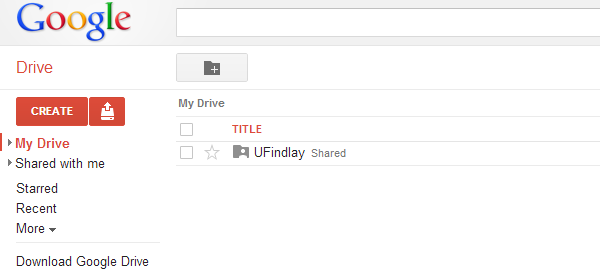
Here is my UFindlay account after the above has been completed. Notice there is only one folder and that folder is named in a way that is easily identifiable as my Findlay account.
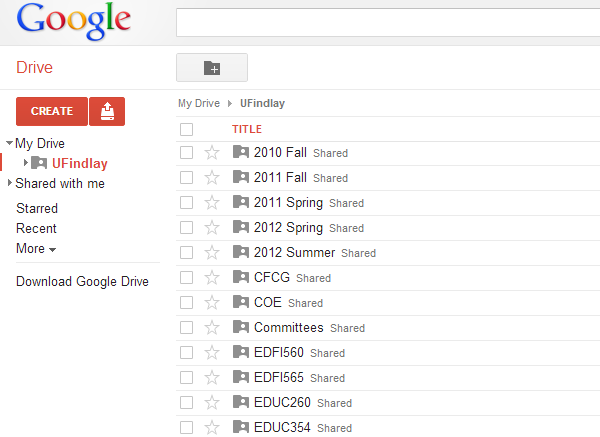
If you open this one folder, you will see all the files I have been working on for the last few years. These date back to my original Google Docs before Google Drive was around.
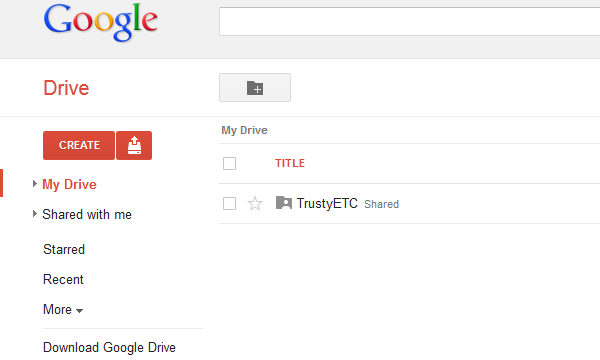
I did the same with my TrustyETC Google Drive.
Each of the above folders should be shared with edit rights with your master account. I used the email option to share the subordinate with the master account. This will cause the subordinate accounts to show up in the master account. To get the subordinate accounts into the master account’s Google Drive App folder, the shared folders must be dragged to My Drive in the master account. After each account is dropped there, the shared folders will show up in the main directory (not just in the shared directory) of the master account.
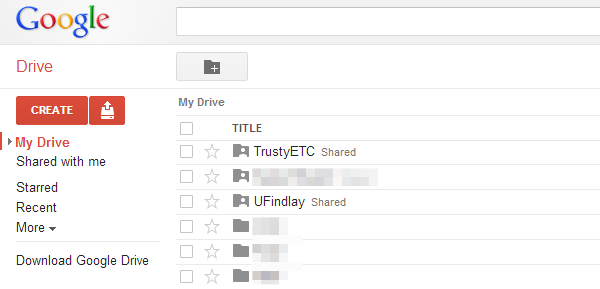
When those subordinate accounts are dropped into the master My Drive, all folders from the shared accounts will be synced to your hard drive through the Google Drive App.
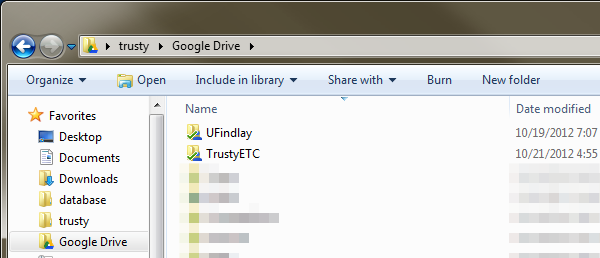
Here’s the bonus. Each account has five gigabytes which is calculated independently of the master account. In other words, my Google Drive just went from five gigabytes to a possible fifteen gigabytes. I have not been able to find a limit on this sort of chained storage in the Google Drive documentation.
There is a way to get 50 gigabytes of Google Drive for next to nothing. If you own a domain, connect it to Google Apps For Business. The connection is free and comes with ten free accounts for your domain. Each account gets five gigabytes of free storage. I am sure all ten accounts could be connected to one master account for a total of 50 gigabytes of cloud storage.
Happy Googling!