
My Android Apps

In case you are getting an Android phone this weekend, here is a list of apps I use. All of these apps are FREE.  None of these apps require rooting.

1 – Barcode Scanner

I’m putting this application first because you can use it to easily get the rest of the apps I have listed.  Barcode Scanner is an app that will read barcodes.  It will also read QR codes.  You can download almost any Android app without searching through the app store, if you have a QR code which will take you directly to the application page.  Start Barcode Scanner.  Point your camera at the QR code that’s on the screen.  Take a picture.  Magic.

Use Barcode Scanner and point at the QR code for Gesture Search.  It’s that easy.

2 – Gesture Search

This application will let you scribble search information on the screen.  Want to call Buzz?  Use your finger to draw a “B”.  Follow that with a “U” if there are too many B’s in your list.  It will search names, apps and media on your device, if you decide to turn all of that on.

3 – Twidroid

It’s Twitter for Android. I plan to use this until Twitter’s official app is available on Android.

4 – PdaNet

With Android, tethering is free. Until Android 2.2 comes out (where it’s part of the OS), use this app to connect your computer to the Internet using either a USB or Bluetooth connection to your Android phone.

5 – Google Goggles

Got a picture you can’t identify? Start Google Goggles and point your camera at it. Chances are good that Google can figure out who or what it is.

6 – Shazam

This does for audio what Google Goggles does for pictures.

7 – Ringdroid

Turn any song on your phone into a ring tone.

8 – Wifi Analyzer

See the names of signal strength of the wifi access points around you.

9 – Shop Savvy

I think this one also reads QR codes, but that’s not what I use it for. Use this app when you’re in a store and wonder if the sale price is comparable to what you can find online or at other stores close to your location. From Best Buy it told me I could drive one mile down the road to Staples and save ten dollars.

10 – Where

Find food, gas, entertainment… just about anything in your general location. Application also shows prices.

11 – Bible

Use this app to get almost any version of the Bible: KJV, NKJV, NIV, ASV, ESV, etc. I used the same app on my iPod Touch (my church has wifi). Now it’s on my phone even if I don’t have wifi.

12 – RealCalc

Best calculator I’ve found. Has all the scientific functions and it’s laid out logically… as long as you don’t think RPN is logical.

This should keep you busy for a bit. I also use Google Voice and Evernote on my Droid. I have one game: Air Control. Now that I have an iPad, I don’t use the Droid for games very often. The size of the iPad makes it a killer game platform.

Posted in edtech | 5 Comments

Controlled Social Networking for Student Collaboration

Above is my keynote presentation from eTech’s first Technology Spring Institute.  There’s no audio in the Slideboom deck.  They did video tape the presentation and will have it on iTunes with the audio.  If you saw the presentation, the concepts should come back to you quickly as you go through the slides. 

Delicious tag: http://delicious.com/atrusty/2010tsi

Technical notes: This was the first presentation I did using the beta of PowerPoint 2010.  For the first time my videos worked without any special tricks when I uploaded the PPTX file to Slideboom.  A great new feature in PPT2010 is video cropping.  I did this on all the videos, but Slideboom didn’t know how to handle it.  So you’ll see each video in its entirety.  The JFK video at the end also plays twice.  In my original deck, only the second one played.

For Discussion

I started this presentation with an attention grabbing video.  At first I was afraid of upsetting some of the attendees by the graphic nature of the video, but I thought the overall idea would add good perspective to the whole presentation.  You may have heard the story of a community who rescued three orphaned seals.  The community raised these seals from pups, nurtured them and sheltered them from the dangers of the outside world.  When the seals were old enough, the whole community celebrated their return to the wild by going down to the beach and having a “graduation party” of sorts.  That should help you understand the first video.

I wanted to establish a little perspective concerning social networking as it relates to other dangers faced by students.  You’ll see some news articles about teens killed in Facebook linked activities.  A few students were killed last year because they became too involved with the wrong people while using social networking.  This was trumpeted as a national tragedy and the responsible social networking sites were blamed.  Yet, when twenty students die in school bus related accidents in one year (that’s the national average), the NTSB proclaims school buses as one of the safest ways to travel.  800 teens died last year while driving to or from school.  EIGHT-HUNDRED!  That’s more than four for ever day of school.  Do we see a national push to get our high school students from behind the wheel and back on the bus?

We waste a lot of effort trying to keep our students off social networking sites instead of educating them on the proper use of these sites.  Take a look at the 21st century skills listed on slide number 121.  Many of these critical skills can only be mastered by using social networking tools.

In the end, I offered several, free tools which could be used to begin to educate our students about social networking without exposing them to the outside world.  These open source applications can be added to any school server and give students a chance to use services similar to Facebook, Delicious, Twitter and Flickr.  Using these resources in a “walled garden”, students could be introduced to social networking without the worry of unknown dangers lurking just off the shore.

Posted in edtech | 3 Comments

Kara Trusty wins John Philip Sousa Award

 Kara Trusty - John Philip Sousa Award Winner 

Some schools are known for their sports teams. Others for academic feats or famous alumni. Shawnee is certainly known for their bands. Both marching and concert bands have received ones at state competition for as long as anyone can remember.  The director has been there for almost 30 years and has always earned ones at state.  The OMEA plaques completely encompass the band room.

So when someone wins the highest award given by this band, it’s a big deal.  Congratulations to Kara for winning the John Philip Sousa Award for the 2009-2010 school year. 

Now her name will permanently be on one of those plaques, along with her older sister.  The Band of One salutes you!

Posted in edtech | 1 Comment

Linux in the classroom – 21st century skills

I teach an integration class at UFindlay which is required of all education undergraduate majors.  One of the Ohio requirements for the course is that all students demonstrate proficiency in “multiple operating systems.”  Until this year, I was fortunate enough to have the class in a lab with duel-boot iMacs.  Each day the students could boot into the OS of their preference, but on the days we were doing OS specific activities everyone would have to use either Windows or OS X.  In our case, “multiple” has always been “two.”

This semester the iMac lab schedule had to handle some extra digital art classes.  The iMacs are the only computers in our building which have the Adobe Creative Suite software and that software is only on the OS X side.  So I was asked to move my class to a PC lab.  Knowing my students had to demonstrate proficiency in multiple operating systems, I hatched a plan to boot the computers from a Linux Live DVD for the assignments requiring a second OS.

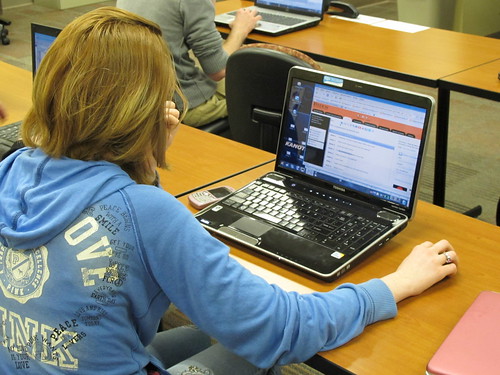
Kanotix Linux in the classroomOn Tuesday my students created a tutorial using PowerPoint.  Using screen captures, each student created a presentation showing all the steps required to insert a picture into a Word document.  Here is my example.

http://www.slideshare.net/proftrusty/insert-a-picture-in-word

Each student must insert his or her own picture into the presentation.  This makes it easier for me to identify who has submitted each file and also precludes them from sharing screen captures with each other.

On Thursday we repeated the assignment but used Kanotix Linux instead.  This Debian based distribution had received good reviews for hardware identification.  I have a lab of 28 Dell desktop computers, but in addition there are a dozen students who bring their own laptops to class.  Kanotix worked fine on the lab computers, but I wasn’t sure how well it would work on the assortment of laptops we have.  To complete the assignment, the students had to login to UFindlay’s Blackboard server.  The assignment and the class pictures were in Bb.  This was going to require a wireless network connection for the student laptops.

Kanotix worked on most of the student laptops.  The inserted picture is a student using a Toshiba laptop booted from the Kanotix DVD.  The assignment required the students to create a PowerPoint tutorial showing all the steps required to insert a picture into Open Office.  Here is my example.

http://www.slideboom.com/presentations/151346/Open-Office-on-Linux

Kanotix includes Open Office as well as hundreds of other programs.  The students used a screen capture utility to grab screens from Open Office.  We did hit a snag when some USB drives wouldn’t work and students had to resort to emailing files to themselves.  We found an archive utility which did permit us to add all the files into one zip file for easier email file management.

This was the first time I had done this particular activity in class.  I was not sure how it would go, but overall I think it was a huge success.  Having this exposure to Linux was not a big deal.  Most of them will never use Linux on the desktop.  The most important skill they picked up yesterday was learning something new in a short amount of time.  In about an hour each student went from “I have never used Linux before” to “here is an artifact showing I can use Linux to create a presentation.”  This is an important 21st century skill which all teachers need to understand.  As technology changes ever so quickly, we all must be able to understand how these new tools work and how we can use them in our classrooms.

Posted in edtech | 5 Comments

Web 2.0 Never Forgets – Developing a Professional Digital Footprint

Web 2.0 Never Forgets – Developing a Professional Digital Footprint from Alvin Trusty on Vimeo.

Posted in edtech | Tagged , , , , | 5 Comments