RemarkableOhio almost 500

Over the weekend we did a little travelling.  I promised my wife a night out of town and since we were already going across the state to pick one of the kids up at church camp, it seemed like the perfect time.

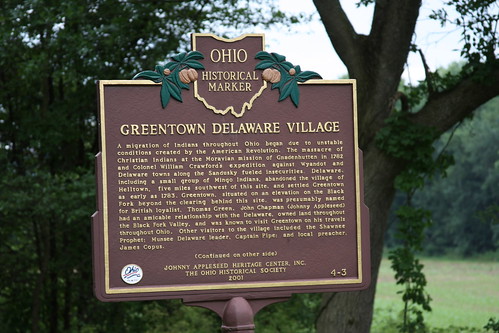
We stayed in a nice bed and breakfast called The Barn Inn in Holmes county.  We weren’t planning on doing much other than resting, eating (it is Amish country) and taking some pictures.  Then without even looking, an historical marker showed up in the middle of the Amish community.

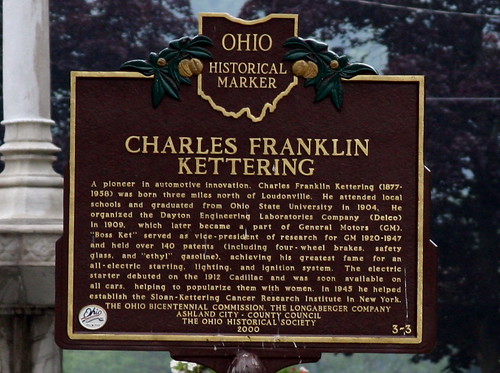
On the way home, we were sitting at a red light in Loudonville when we saw this one.

Outside of Perrysville, we passed this one and I actually turned around and went back to get a good picture.

No one in the car seemed to mind stopping to take a picture since we weren’t really out to find these markers.  That’s the way we have been doing them this year.  We spent last summer driving all around to find them.  Now we find them naturally along the path to wherever we happen to be going.

When I added these three markers to Flickr I noticed the count is approaching 500.  There are some duplicates, but we have a lot of unique pictures. See them all here.

http://www.flickr.com/photos/tags/remarkableohio

I should add one thing about that last picture.  A bird had left a nasty white mark over three lines of text.  The new version of Picasa easily removed the blemish.  If you haven’t looked at Picasa in a while, you should take another look.  I haven’t found another free picture manager that has nearly as many features.

Posted in edtech, leisure | Tagged | 1 Comment

FeedReader3

Like many other people, I use Google Reader as my main RSS feed reader.  However, I like to keep my class feeds separate.  For years I have used a free piece of software called RssReader.  This simple program keeps all my feeds in a stand-alone app with one big bonus.  RssReader archives all edits.  So if someone changes a post, the reader keeps track and shows all versions.  This is super handy when using blogs with students.

The main problem with RssReader is its age.  It was last updated more than five years ago.  As a result, it lacks some of the features of newer readers, plus I’m starting to get random errors with some of the blogs I read.

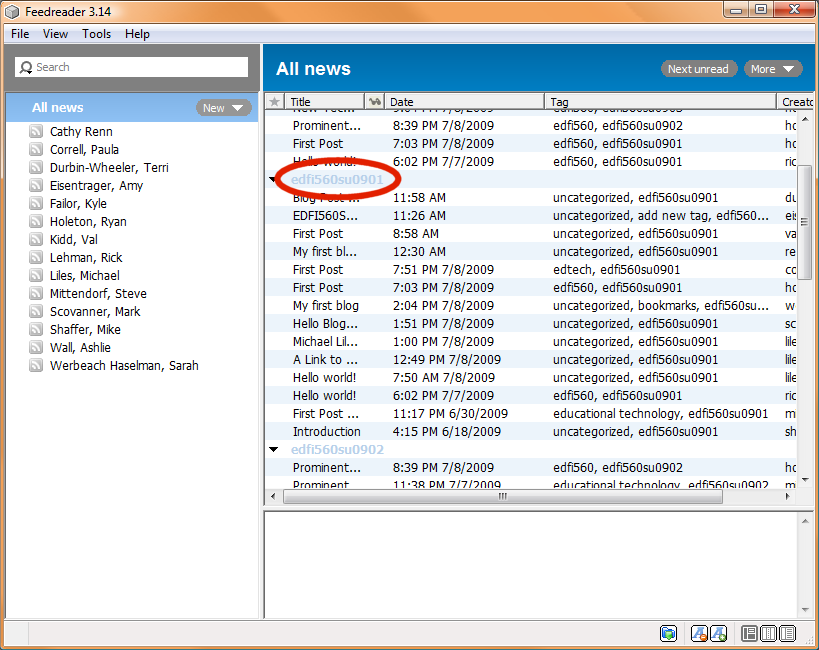
I went looking for a new reader and found this list at the Open Directory Project.  Specifically I was looking for a reader that could handle sorting by tags.  I found FeedReader3.  As you can see below, the feeds can be sorted by tag.

When I give a blog assignment in class, I have the students add a very long and specific tag to each post.  This does two things.

1 – I can sort the posts in my reader by assignment.  This makes grading much easier especially if there are several posts which are similar.  I can tell which post goes with each assignment.

2 – The students can find each other easier.  Google picks up each post with its tags and a search of one of the tags will show all posts by all students.  At some point I always have students consider the work of other students.  These tags make it easy to see what everyone else is saying.

So far FeedReader3 has worked well.  It has an OPML import and export feature, so moving all my feeds into FeedReader3 or out to something else is snap.  From what I see,  I will probably stick with this one for a while.

Posted in edtech | Tagged , , , | 1 Comment

I really want to learn Microsoft Office

If you have worked in educational professional development, at some point you have asked your audience this question.  “What technology would you like to know more about?”  I asked this question to my school district in the early 1990s.  Microsoft had just come out with Office 3.0 (the first version) which contained Word 2, PowerPoint 3 and Excel 4.  I think they averaged those numbers and gave it the version number three.

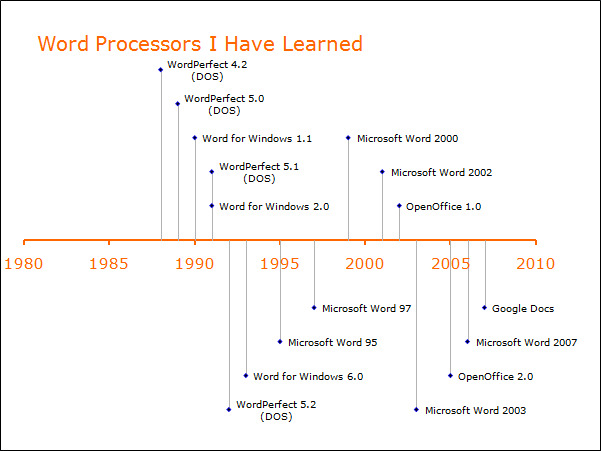
In my career, here are the word processors I have learned to use.  I have never attended a training to learn how to use a word processor.

For several years I repeated summer PD with my teachers and each year the same “technology” was requested.  Most teachers were interested in learning more about Microsoft Office.  Sometimes there would be a few teachers asking specifically for one application like Excel or PowerPoint, but it was always something to do with Office.

Times have changed.  The number one item I hear about now is the SmartBoard, but Office follows in a close second.  If a school does not own SmartBoards and does not plan to buy them, Office is still number one.

The funny thing is, I have never taken a class to learn any version of Office.  I have read several books and used assorted online resources, but I have never sat in a class for the purpose of learning how to use Office.  Yet, I have learned to use sixteen different word processors since my first job.

The technology standards for the state of Ohio have an indicator which states all ninth graders will:

Demonstrate proficiency in all productivity tools (e.g., word processing, spreadsheet, database, desktop publishing).

And these standards were adopted almost six years ago in 2003.

I am using Office 2007 right now.  Office 2010 will be out later this year.  The freshmen I have in class this fall will still be using the old version.  Long before they graduate and get jobs in schools, Office 2010 will be out and widely adopted.  By the time they teach ten years, few people will still be using Office 2007.

This is why a personal professional development plan is so important.  If we do not keep up with the basic technologies on our own, we will never master the use of advanced technology tools which really are exciting to use in the classroom.

Posted in edtech | Tagged , , , , , | Comments Off on I really want to learn Microsoft Office

Dell and Dead Pixels

This picture has five dead pixels.  Would you consider a display like this defective?

I have had a streak of bad luck that has placed Dell on my “do not recommend” list. It all started in 2003 when a brand new Dell Latitude arrived with a couple of dead pixels. I called Dell and they had someone at my house the next day to replace the screen. The technician did as good a job as he could have done, but there were pry marks on the lid. I still have this laptop and those marks are there to this day.

Fast forward to 2009. I needed to replace the aging Latitude so I purchased a Studio 17. The models at BestBuy did not include the back lit LED. I had to order the computer online. You guessed it.  The screen arrived with several dead pixels. I called customer care and after explaining the problems with the replaced screen in 2003 Dell agreed to send me a new machine instead of fixing the defective one. It took an extra week to get the replacement, but it was a new computer without defect.

This week I needed another computer. I ordered a Studio 15 from Dell and for the second time in as many months, the computer arrived with dead pixels. This time customer care was not as understanding. They explained that dead pixels were OK as long as there were not too many. According to Dell, five dead pixels on an LCD screen is OK and with today’s high resolution displays this number is recognized as an industry standard. Apparently the lucky people get LCDs with no dead pixels and I have not been lucky in my last two purchases.

I demanded my money back. I will not purchase goods and services from companies that peddle defective equipment. The customer care person transferred my call to the refund department. Those people could not help me. They transferred me to the people who process refunds. They could not help me either so they transferred me to someone else. Six transfers later, each one supposedly the one who could refund my money, I was told by Johnny that I would have to pay a 15% restocking fee since the computer was not defective.

This picture has five dead pixels.  Would you consider a display like this defective?

In the last fifteen years I have purchased more than 50 Dell computers. I have had a few problems along the way, but I have continued to purchase Dell computers because they have fixed things quickly without a hassle.

I have been hassled one too many times and will not be purchasing another Dell, nor will I be recommending Dell to my family, friends, school and PLN. I have already replaced the defective Dell with a competitor’s computer with no dead pixels.

If you are interested in Dell’s “Pixel Quality” policy, you can find it here.  Dell’s policy is difficult to find with Google because it does not contain the phrase “dead pixel.”  Dell uses “dark dot” instead.  If you have a screen with dark dots, you will have to have six of them before Dell considers the display defective.

This “dark dot” terminology could relate to the fact that each pixel consists of three small dots or sub-pixels.  Each dot is either red, green or blue.  Together, the dots make up a single pixel capable of showing any color.  Using this terminology, one completely dead pixel is actually three dark dots.

HP also uses “dark dots” to describe “minor cosmetic manufacturing anomalies or irregularities.”  HP’s policy (here) is subject to the resolution of the display.  At lower resolutions, HP’s policy is similar to Dell’s.  If a screen has more than 2.1 million pixels, HP requires a total of nine bright or dark dots to qualify the device as defective.  There is an exception if the dots are within 15mm of each other.  In that case, only 2 dark dots are required for replacement.

Apple’s policy (here) does not state the specific number of dead pixels required to categorize an LCD screen as defective.  Apple states this:

If you suspect your display contains a high number of pixel anomalies, take your Apple product to an Apple Authorized Service Provider for closer examination. There may be a charge for the evaluation.

Not only does Apple not state how many pixels it takes, but they may also charge you a fee to have someone tell you your monitor is not defective.

This picture has five dead pixels.  Would you consider a display like this defective?

The manufacturing processes continue to improve, yet I am seeing more defects.  High resolution screens have been around for a long time.  My 2003 Latitude has a 1600 x 1050 screen.  I still do not have another machine with higher resolution and that Dell is six years old.  Manufacturers have cut every possible cost to make the lowest priced computers.  The problem is poor quality control.  Now the manufacturers are letting the defective devices slip into the production line, but still manage to pass the “cost” onto the customer.

If you want to avoid dead pixels, purchase your computer from a shop that will permit you to see the display before leaving the premises.  If you purchase a computer with no dead pixels, your chances are good that none will die before the warrantee expires.  In the last ten years only one of my laptops has “developed” a dead pixel and that was when the machine was eight years old.

If you purchase your computer online and have dead pixels, use the proper terminology when talking to tech support.  Use “dark dots” when describing the problem.  Also make sure you have six or more dark dots before you call for help.  HP describes a dot as one third of a pixel.  By their definition, two completely dead pixels is a total of six dark dots.  I’m not sure what kind of math each manufacturer uses.  Be ready to reduce terms to the lowest common denominator. Hopefully poor customer service does not become an industry standard.


Posted in edtech | Tagged , , , , | 1 Comment

Architecture Field Trip

Many early settlers of Findlay, Ohio built homes along two east-west streets. Front Street was next to the river and Back Street was the next street south, away from the noise and smoke generated by local factories. Later, Back Street became Sandusky Street. Findlay benefited from the oil and gas boom of the late 1800’s. Most of the benefactors of this wealth built extravagant homes on South Main Street which intersects Sandusky in downtown Findlay.

This week I chaperoned my daughter’s field trip.  For the past few weeks her class has been studying architecture.  In preparation for this field trip, the students identified many types of physical structures.  Each student used a pencil to draw examples of columns, arches and other building features.

We took a school bus to West Sandusky Street in the historical section of Findlay.  Starting at the Hancock Historical Museum, we walked several blocks examining the architecture of houses and other buildings.  We were led by local historian and author Linda Paul.  Linda lives in one of the houses on our tour and has researched most of the homes in the historical district of Findlay.

As we walked past each house, the architectural features were pointed out and students took pictures with digital cameras.  On a worksheet, students recorded the address of each home and categorized the type of architecture observed. We ended the first half of our tour at Corporate Research International headquarters on East Sandusky Street. This four story building was built in 1905 to function as a grocery distribution center.  We went from the basement all the way to the roof.  One of the main features of the building was a four-story slide that was used to “drop” groceries from each floor down to the first floor where horse-drawn wagons picked up supplies.

Here are the pictures from my group.

http://www.flickr.com/photos/trustypics/sets/72157617807271870/

http://www.flickr.com/photos/trustypics/sets/72157617807271870/map Geotagged Version

As you look through the pictures note the differences in the houses.  This is in striking contrast to our neighborhood where two other families live in houses almost identical to ours.

When we finished the tour, Linda passed out a Walking Tour pamphlet she developed for the museum.  Each historical home on Sandusky and Main Streets is listed with its architectural features, building and year of construction.  This gave the students a chance to check their work and ask the historian questions about specific houses.  It was a valuable learning experience for all.

Posted in edtech | Tagged , , | Comments Off on Architecture Field Trip