
I Don’t Have Time

Things I have heard other people say:

I don’t have time to learn Google’s search operators (+, -, site, filetype, etc).  I can always find what I’m looking for in fifteen or twenty minutes.

I don’t have time to create folders for each of my projects and give my files meaningful names.  I can always find the file I am looking for in fifteen or twenty minutes.

I don’t have time to learn how to insert my digital pictures into my weekly newsletters for my students’ parents.  I prefer to get my pictures developed and then tape them to my newsletters before I photocopy them.  Wal-Mart has one-hour development and I can drive there in fifteen or twenty minutes.

I don’t have time to setup a del.icio.us account.  I can remember all the URLs that I need to visit.  If I run across something interesting, I email the URL to myself.  When I need it, I can usually dig through my email and find it in fifteen or twenty minutes.

I don’t have time to setup a flickr account.  If I want my family to see the digital pictures I have taken, I can email them to everyone.  We all have unlimited email space and it only takes fifteen or twenty minutes to send a set of pictures to everyone I know.

I certainly don’t have time for a full night of sleep.  I’m up too late trying to get everything done.

Posted in edtech, efficiency | Tagged , , | 1 Comment

Yahoo Mapmixer

Here is a new tool from Yahoo that lets you add any graphic as an overlay on a normal Yahoo map. A slider tool lets you make the graphic transparent so the underlying map can be seen.

Mapmixer gives anyone the ability to easily place a graphic (I tried GIF, JPG and PNG) over the web 2.0 version of Yahoo’s interactive maps. The process takes four steps:

1 – Choose the city or location for your overlay.
2 – Upload your graphic.
3 – Adjust the size and position of your uploaded graphic so it fits the map.
4 – Tag and publish your Mapmixer.

This site has a lot of potential for educational projects.

To appreciate the above map a little more, check out the full screen version.

Posted in edtech | Tagged , , | 1 Comment

Know your limits

Today a couple of the neighbor kids were playing in our house.  One of them asked to use a computer to feed his Webkinz.  This particular little guy just started kindergarten.  I was interested in seeing what he could do on his own.
I pointed him to our second grader’s computer.  He double-clicked “e” on the desktop.  The computer went to some Barbie page.  Without flinching, he opened the favorites and found the Webkinz icon in the listing.  A few seconds later he was logged in with his username and password.

He fed his “pet” and asked if it was ok to play his favorite Webkinz game.  I asked him what his favorite game was.  He pointed to the link at the bottom of the page.  I asked him the name of the game. 

Without missing a beat he looked at me and said, “I don’t know.  I can’t read.”

Posted in leisure | Tagged | 4 Comments

Animoto

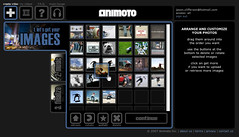
Here is a free, web-based, easy to use movie creator that doesn’t have a lot of options.  The emphasis is on ease of use.

Give Animoto a few of your pictures.  Select a song from the techno-pop list available on the site and Animoto will put in the effects and transitions for your very own movie.

Your kids (if they are very young) and your parents (if they are older) may think it is cool.  The lack of a creative component doesn’t make it useful for many educational purposes, but if you don’t know how to create a movie and have a few pictures… it’s pretty easy to use.

Posted in leisure | Tagged | Comments Off on Animoto

Confusing Choices

Word processing is about preparing a document for some sort of publication.  There are many parts to word processing, but the basics include formatting text, controlling page layout and inserting external objects such as graphics.

When learning how to use a word processor, one should already know how to type.  When I teach word processing, I give my class a few hundred pages of a classic work (something out of copyright) and have them format the document in a specific way: fonts, line spacing, margins, page numbers, a few graphics.  We start with an ASCII text file, usually from Project Gutenberg.

Here is the step that usually sinks one or two students.  When an ASCII text file is saved using Word, this cryptic message pops up.

YourFile.txt may contain features that are not compatible with Plain Text format.  Do you want to save the document in this format?

To save, click Yes.
To preserve formatting, click No.  Then save a copy in the latest Word format.

Most people that get this message will click “Yes”.  After all, I want to save my file.  I have been formatting this thing for an hour so I certainly want to save my file.  How can I go wrong by pressing “Yes” to save my file?

“Yes” will save the file as an ASCII file.  ASCII files can’t contain formatting (fonts, line spacing, margins, page numbers, a few graphics).  In other words, if you take the time to format a text file and then save it as a text file, you will only have the file you started with and no formatting at all.

The correct thing to do is Save As and select “Word” as the document format.  This retains all the formatting.  If you don’t go with the “Save As” option, chances are you will become another victim of that confusing message from Microsoft and end up right where you started.

Posted in edtech | Tagged , , , | Comments Off on Confusing Choices