 It is important to keep your computer’s operating up to date. Go to the Control Panel and double-click the Automatic Updates icon. There are several options to select from.
1 – Configure your computer to automatically check for updates. If there are updates, your computer will automatically download and install them. If you have never thought about updates before reading this post, this is the option for you.
2 – Automatically download new updates but let me select the time to install them. This is the one I use. Because my computer does work for me while I sleep, I don’t want an update automatically rebooting my computer and killing a scheduled process. My computer alerts me when new updates are available and I install them when I am ready.
3 – Just tell me when an update is ready, but don’t download anything else. If you have limited bandwidth (dial-up) this one may work best for you. Microsoft will tell you an update is ready. At that point, you can go to your neighbor’s house and ask him to download the big files on his high-speed connection. Save the files to a CDR and take them back to your house and install them.
4 – Turn off Automatic Updates. I can only think of two reasons for going with the last option. First – your computer isn’t connected to the Internet. Second – someone else may be installing all the updates for you in a way that is transparent to you.
TSPY=1.00

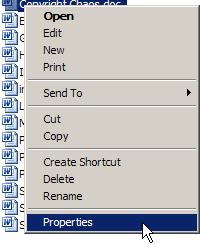 Any time you need to know more information about a file, you can check the “properties” of the file. A right-click of the file followed by selecting Properties from the list will open information about the file size, create date, security settings and more.
 Here is another “URL” time saver.
  Today I had to restore a machine using my bare-bones XP image. A long time ago I did a clean install of XP and then created a Ghost image of that install. The install took almost an hour. The imaging process takes ten minutes. I haven’t installed XP from the disks in years even though I do a fresh image at least once a month.
 When it comes to doing things quickly, the faster your computer, the more efficient your tasks. Your computer will run faster if you don’t have wallpaper loaded.