
Efficiency Tip #60 – Start Letter

I have talked about using the Pin Area to gain quick access to programs used often.  If you find that certain programs are used more often, use the “letter” shortcut to open the program faster.

I use Eudora for my email.  Eudora (starting with the letter E) is in my pinned area.  To open Eudora, I press the Windows Key (don’t hold it down) and then E.  Eudora opens.

Eudora happens to be the only program in my Start menu that begins with the letter E.  If I press W instead of E, I high-light Word in the start menu, but Word does not open.  This is because WinSCP is another program in my start menu and it also starts with W.  You can still use this shortcut with multiple W’s in the Start menu.  Simply press Enter as soon as the correct program is high-lighted.  For me it works like this.

Windows Key, W, Enter – starts Word
Windows Key, W, W, Enter – starts WinSCP

If you find yourself using the mouse all the time on the pinned list, try the keyboard shortcut.  It will save you time.

TSPY=1.34

Posted in edtech, efficiency | Tagged , | Comments Off on Efficiency Tip #60 – Start Letter

Efficiency Tip #59 – Turn Off Wireless

Yesterday I talked about using wired networks instead of wireless.  If your computer has a wireless card and you are not using it, turn it off.  A wireless card will use up your battery even if you are not connected to a wireless network.

My laptop has a switch that turns off the power to my built-in wireless card.  One of my kids has a laptop with a function key that does the same.  If you have an “add-on” PCMCIA wireless card, take it out of your machine when not in use.

Leaving your wireless card on can also cause some security problems.  Someone that “sees” your computer via a wireless adapter can mess with your machine.  There is already a “Free Public Wi-Fi” sort of virus going around.

There is a hard and fast rule you should follow regarding all computer software.  If you are not using it, turn it off.  Wireless should be treated the same way.

Posted in edtech, efficiency | Tagged , | Comments Off on Efficiency Tip #59 – Turn Off Wireless

Efficiency Tip #58 – Wired is Better Than Wireless

Last year I finally installed a wireless access point at home.  The reason was the only one that makes sense when it comes to using wireless; I had a location that I couldn’t run a wire to.  We added a kid playhouse in the back yard and I didn’t want to dig a trench all the way out there for a wire.  So I picked up a wireless access point.
There are three attributes of wireless that I preach to my students.  Wireless is…

1 – slow
2 – unreliable
3 – insecure

I use WPA to keep my neighbors out of my network.  From my kitchen my laptop can “see” eight access points.  WPA with a 63 character password keeps me secure.  Six of my neighboring access points are wide open.

WPA won’t help speed things up.  In fact, WPA will make a slow wireless connection a little slower.  And there is nothing you can do about the reliability.  Wireless networks just don’t work some times.  The closer you are to the access point, the better, but you can count on your wireless not working once in a while.  It is the nature of wireless.  Reboot your access point, move your computer closer to the access point… hold your mouth just right.  You will get connected again.

I have upgraded my home switch to gigabit.  That’s 1000 megabit.  My wireless is 54 megabit.  1000 miles an hour is A LOT FASTER than 54 miles an hour.  It may seem like a nuisance to run wires, but if it is at all possible, run wire.  Wired networks rarely fail to work, they are fast and secure (as long as you have a firewall between you and the Internet).

Wireless can be convenient.  Wired wins all other categories.

TSPY=5.63

Posted in edtech, efficiency | Tagged , | 3 Comments

Efficiency Tip #57 – Desktop Icons

For some reason a fresh install of Windows only includes one icon on the desktop – the Trash Can.

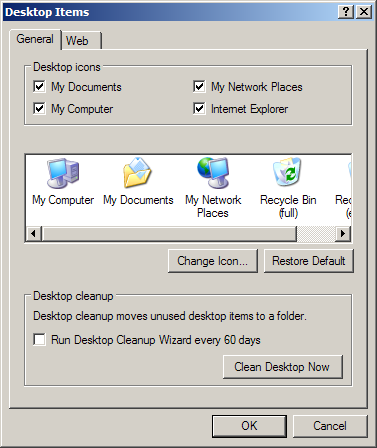
desktopitems.png

I don’t use the desktop for many things. Usually I can’t see it because programs are running all the time and they cover the desktop. When I do use items on the desktop, I want the most important icons there. Those are the My Computer and Network icons. You can turn these on by right-clicking anywhere on an empty desktop and selecting Properties. In the Display Properties select the Desktop tab and then click the Customize Desktop button. This will bring up the window shown above. Check the boxes for everything you want on the desktop. In the future, you have a quick way to get to My Computer or the Network.

TSPY=1.58

Posted in edtech, efficiency | Tagged , | 1 Comment

Efficiency Tip #56 – Synchronize

Microsoft has a nice tool that permits you to synchronize files on two different drives.  It is called Briefcase and it is handy for all sorts of things.

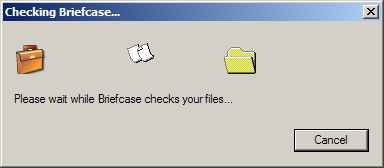
briefcase.png

I carry a USB Flash drive with me all the time.  I keep a copy of my latest project files on the Flash drive.  Let’s say I have a PowerPoint that I am going to use in class.  Right before using it, I make a couple of changes.  That’s great for my class, but the original back at home needs to be updated too.  Because I use the Briefcase on my Flash drive, when I get home I “update” the Briefcase.  Windows checks the original and my Flash drive.  It notifies me that my USB drive has a version of the file that is newer than the one on my home computer.  It asks if I want to update the home computer.

If you use files on multiple computers, check out the Briefcase

TSPY=2.00

Posted in edtech, efficiency | Tagged , | Comments Off on Efficiency Tip #56 – Synchronize