 Last year at this time I downloaded a full copy of SUSE Linux to see how easy it would be to get it running. This year I decided to try the educational version, of Ubuntu. It’s called Edubuntu.
What a difference a year makes.
Last year the installation worked just fine. It was the same this time. I downloaded the ISO, burned a CD and booted from the CD. Edubuntu can now run from the CD without an install. That’s handy. I plan on using the OS a little bit so I did a full install.
After answering a couple of username/password questions, I was finished. When everything was finished, it kicked out the CD and told me to hit Enter to reboot.
When the OS booted I logged in and tried the acid test. I connected to my home server and grabbed some MP3 files. Last year SUSE couldn’t play an MP3. This time the Totem Movie Player told me the file needs a codec. It went online and found one that plays MP3 files. It worked just like you would expect. After giving the OS my admin password, it installed and played my MP3. Wow!
Edubuntu is designed for school use. It has Open Office installed for word processing, spreadsheets, databases and presentations. Gimp is included for graphics. Firefox is the default browser. There are some games but nothing particularly for education… unless you consider Sudoku educational.
I’m running Edubuntu on a five year old Dell Inspiron 2650 laptop (1.7 GHz, 512 MB RAM). It works just fine. I think I’m going to play around with it for a while.

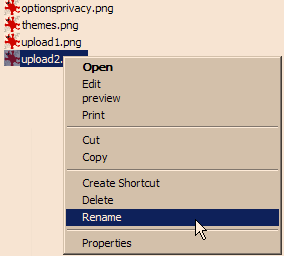 The next time you need to rename a file, don’t use the Right-Click-Rename option. Instead, press the F2 button. This will put you right into edit mode and any typing will change the name of the file.
 Did you know the power button can actually be used to turn the computer off? You can control the specific action of your power button – Control Panel – Power Options – Advanced settings. The default is to shutdown your computer. You can also select “sleep” mode, “ask me” or “do nothing”. You are probably best off to leave it at shutdown, but it is nice to have options.
 I must mention some things that I thought were obvious. Today I was working with someone that did not know the scroll wheel on a mouse could be used to move a browser page up and down. To scroll down the page, he moved the mouse to the scroll bar on the right side of the screen and dragged it down.