Efficiency Tip #29 – Help – F1

HelpThe next time you need help in any program (Word, DreamWeaver, Firefox, anything) press the F1 key.

I get a lot of calls from people that need help with an assortment of applications.  I’m a computer guy, so I am suppose to know how everything works.  The truth is I just have a really big F1 key.  I can’t count the number of times I have read the “solution” to someone right from the help file after I pressed F1.

If you aren’t running a program and press F1, you will get Windows help.

TSPY=2.75 and a little on your phone bill

Posted in edtech, efficiency | Tagged , | 1 Comment

A Fair(y) Use Tale

Let Disney explain copyright.

Posted in edtech | Tagged , , | 3 Comments

Efficiency Tip #28 – High Speed

Dial-up AccessDo you still use a dial-up connection to access the Internet? If you value your time, you could be spending way too much to access the Internet.

I like to use the $2 per hour rate with my students. Most educated people will not work for $2 an hour. Let’s do some math.

Dial-up access costs $10 per month for 50kbs speed.
High-speed (cable modem or DSL) costs $50 per month for 1000kbs (1 Mb) speed.

Your actual costs may be more or less, but these numbers are good averages. Plus the 1:5 ratio in cost makes the math easier.

Assumptions: You will view 100 different pages each day. The average web page is 1500kb (188kB)

Dial-up: (100 pages/day x 30 days x 1500kb/page)/50kbs = 90000 seconds = 25 hours
High-Speed: (100 pages/day x 30 days x 1500kb/page)/1000kbs = 4500 seconds = 1.25 hours

Your Time Cost
Hours Dial-Up – Hour High-Speed = 25 hours – 1.25 hours = 23.75 extra hours via dial-up

How much is your time worth? Is it worth $2 an hour? If so, you are losing money by using dial-up.

Dial-up cost: $10 per month + 25 hours x $2/hour = $60 per month
High-Speed cost: $50 per month = 1.25 hour x $2/hour = $52.50 per month

 …and that’s if your time is only worth $2 an hour.

TSPY=288.96

Posted in edtech, efficiency | Tagged , | 2 Comments

Efficiency Tip #28 – Search and Replace

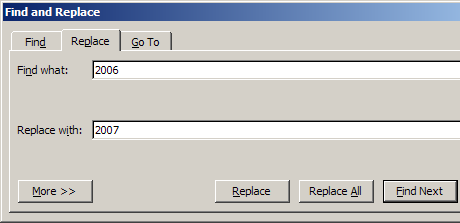
Most text editors have a function that permits searching. We talked about the F3 shortcut before. In addition to searching, there is usually a replace function (Ctrl-H). Using this tool you can find a specific word or phrase and replace it with a new word or phrase.

Search and Replace

There may even be a system-wide setting that can do the same thing for many files. Recently, the UF updated a server that houses a few hundred of my web pages. The old server was actually taken out of service and all the files were moved to a new server. Many of my pages had absolute references to the old server. By this, I mean the links had the server’s name included as part of the code. This was necessary because the pages contained dynamic data stored in databases. When the old server went away, all the pages stopped working.

Using a global search and replace, all the old references were replaced with the new correct server name in a few minutes.

TSPY=24.00

Posted in edtech, efficiency | Tagged , | Comments Off on Efficiency Tip #28 – Search and Replace

Yugma

yugma.pngThanks to John for sharing this with me. Yugma is a free desktop collaboration tool. If you have ever needed to “see” another user’s desktop, you can use this tool to connect. All you need is a browser. Once you setup an account you can login and create a session. The session has an ID that you can share with another person. That person can then connect to your desktop.

I have the need to do this all the time. When I have a student that is stuck using a piece of software, if I can see his/her screen, I can provide the quickest feedback. Normally I use a combination of Hamachi/VNC, but that is much more complicated than Yugma.

I use the phone to talk to the student while I connect to the remote desktop. Skype will work too if the student has a Skype account.

Posted in edtech | Tagged | 1 Comment