Locking A Computer

At the beginning of the school year, the entire College of Education moved into a new building.  We share the building with other departments.  Our building is large with more than a dozen classrooms.  We actually have more classrooms that we can fill each hour.  As a result, we have a lot of students from other departments taking classes in our building.

Within our college we have always tried to have an open door policy.  Any time I am in the office, I just leave my door open.  This way, if someone stops by to see me, he/she will know I am in the building even if I am not in office.  With all the students roaming our building, we have had a few security problems.  On several occasions, faculty have come back to the office to find a student trying to use the faculty computer to print a paper for a class.  Of course, most faculty keep things like student data (grades) and other private information on the office computer.

Most of our faculty have not had a reason to worry about computer security before now.  Some have used the auto-login feature of the OS to avoid the hassles of typing a password every time the computer turns on.  Also, few have used a screen saver with a password.  We are now instituting these practices.  Here are a couple of tips to help secure your PC, whether using XP of OS X.

If you are using OS X, here is a MacWorld article with several ways of quickly locking a computer: Quickly Lock Your Screen

If you are using XP there are a couple of ways to quickly lock the computer.  Pressing CTRL-ALT-Delete (all at the same time) will bring up the Windows security screen.  One of the buttons will say Lock Computer.  Pressing that button will do it.  An even quicker way of locking the computer is to use the keyboard short-cut: Windows-L.  Press and hold the Windows Logo key and the L key.

An extra safety measure that should always be used is a screen saver with a password.  This is recommended because you want your computer to automatically lock if it has not been used for a period of time.  You may not always remember to lock your computer when you leave the room, especially if you are not using the computer when you leave the area.
Posted in edtech | Tagged | Comments Off on Locking A Computer

Apache2Triad

cpcloseup.gif

For more than ten years, the most popular web server has been Apache. According to Netcraft, Apache has more than twice the market share of the next most popular web server IIS.  For dynamic content, Apache with MySQL and PHP are the most popular combination.  MySQL is the database server and PHP is the scripting language.  Of course, putting all this on a Linux server gives rise to LAMP — Linux – Apache – MySQL – PHP.  You can do the similar things with IIS on a Windows server using ASP (scripting language) and MS SQL (database server), but MS SQL is not free.  More importantly, most free packages, things like WordPress, Moodle and Mambo are all based on PHP with MySQL as the database server.  With great pain I installed PHP and MySQL on a Windows 2003 Server running IIS.  WordPress installed quite easily, but Moodle wouldn’t get past the first screen.  I would venture to say most home computer users couldn’t make the IIS – MySQL – PHP combination work.  There are just too many things that have to be manually configured.  I went through the trouble because I already have IIS on my web server and I have thousands of custom pages using ASP.  I can’t easily convert all that to Apache.  Besides, my employer uses IIS and all my projects usually end up on those servers.

But I know a lot of people that would like to setup a web server and use some of the freely available packages on an internal web server.  Almost all of these people have a computer with Windows XP.  Here is a way to do this in about fifteen minutes.

Apache2Triad (A2T)

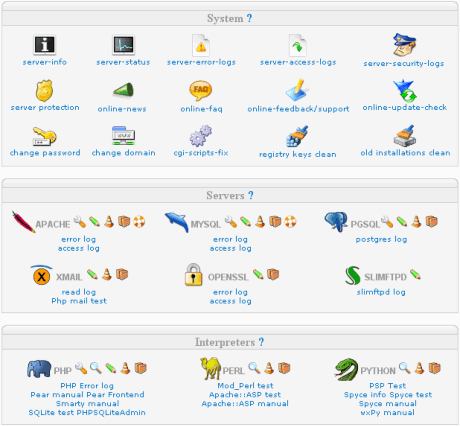
This installation package will install (on a Windows XP machine) everything needed to run PHP applications on an Apache server with MySQL as the database engine.  In addition, it will install Perl, Python, PGSQL, OpenSSL, Xmail and SlimFTPD.  The web server will serve up all your HTML files without any configuration after installation.  If you wish to customize the installation, that can be accomplished through a slick web-based Control Panel (pictured at top of post).  All is available through a browser at

http://localhost/apache2triadcp

I downloaded Apache2Triad and installed it on one of my old machines.  I used all the defaults and the entire process was finished in less than fifteen minutes.  I then downloaded WordPress.  WordPress is easy to install once you have the server, database and scripting all setup.  The first step is manually creating a database.  Fortunately the A2T package includes PHPMySQL.  This is a set of PHP scripts that is be used to manage a MySQL server through a web browser.  I went to

http://localhost/phpmysql

phpmyadmin.gif

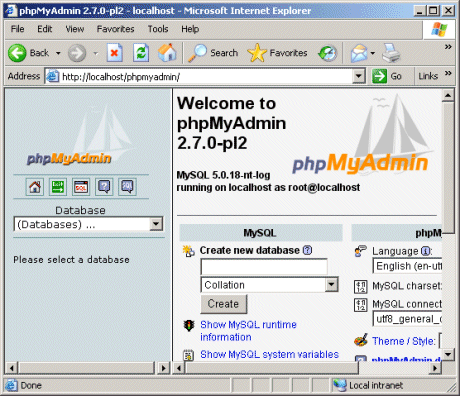
and was prompted for a username and password.  During the A2T installation a username (root) and password (determined by installer) were created.  I enter those and got the PHPMyAdmin configuration panel.

I typed in a database name and press the Create button.  That’s done.

I then extracted the downloaded WordPress files into

C:\apache2triad\htdocs\wordpress

HTDOCS is the web folder created by A2T.  This is the folder where all my web server’s pages will reside.  All the WordPress files will be in a folder under the HTDOCS folder.  The installation is web-based.  Browser to

http://localhost/wordpress

This walked me through the installation.  In less than two minutes, I had WordPress installed.  It was just that easy.

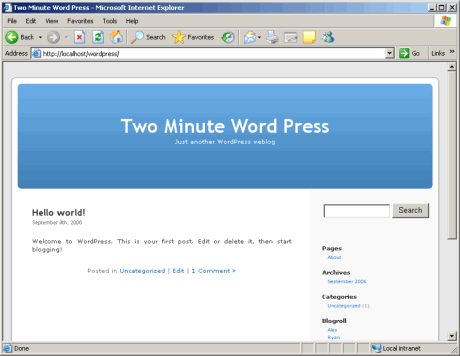
a2twp.gif

If you are a novice at setting up servers and are thinking of experimenting with a web server on your Windows based computer, I highly recommend Apache2Triad.  It is easy to install and includes a lot of bells and whistles.

Posted in edtech | Tagged | 1 Comment

iRiver Clix

I wanted an MP3 player with video, but I couldn’t find one that I really loved. Then I found the iRiver Clix. It’s a flash player (2 GB) so there are no moving hard drive parts. This extends the battery life to about eight hours. The price is about the same as an iPod Nano – $200.

The screen is 320×240. At first I thought it would be too small for video. So I gave it the Seinfeld test. I uploaded an episode. Before uploading I used a free utility called Iriverter to convert a DVD video to the required Clix format (MPEG4). The resulting file was about 86 MB for 22 minutes of video. When I played it, it looked great. I would have no problem watching anything captured from TV on this player. If something is wide screen it is much harder to see. I don’t think I could make it through a two hour movie formatted in 16:9 on this little screen, but 4:3 is fine.

In addition to video, the player also handles pictures and music. These work exactly as you would expect. I found a program that batch converts my photos to 320×240 so I can carrie a few of them around on my player. The music player also handles WMA, ASF, OGG as well as MP3.

Instead of a menu area, the Clix uses the whole screen as the directional controller. Pressing the top of the screen moves up the menu. Right goes into a menu and so on. It works very well.

One other thing. It plays Flash games. I’m sure that will be handy at some point.

If you are thinking about a Nano, think again. You’ll like the Clix much more.

Posted in edtech | Tagged | Comments Off on iRiver Clix

Brain Age Game

Brain Age Game

A young brain is better than an old brain. At least that is what the makers of this Nintendo-DS game think. I picked up a DS-Lite just to play Brain Age. I heard about the game on several podcasts. Everyone had good things to say about it.

The premise is simple. A younger brain (age 20 is idea) things faster and can concentrate better. This game measures how fast you can complete fairly simple tasks. It can understand your writing and your speaking. You start out with only a few games: arithmetic, color identification, reading, etc. You are suppose to play these games every day so that your brain starts to work more efficiently. Every few days another activity is added until you have about a dozen available. The additional games are geared toward concentration and short-term memorization. You can train as much as you like and the DS keeps track of your progress. When you are ready, you can enter the Brain Age mode. The DS selects several activities and based on your overall performance gives your brain an “age”. I started out at 70. Learning how the games worked help get my score down to the mid-forties in only a couple of days. Within a week I did achieve the ultimate – a twenty year-old brain.

I have been playing as many of the games as I can each day for more than a month. It only takes 10-15 minutes. My brain age is hovering in the low twenties (keeping it at 20 is impossible). I think it has helped my concentration and the speed at which I can recall things I know. It is also fun competition for everyone in the family.

It also comes with Sudoku.

http://www.nintendo.com/gamemini?gameid=Y9QLGBWxkmRRzsQEQtvqGqZ63_CjS_9F

Posted in edtech | Tagged | 2 Comments

Hamachi

I’m away at a retreat and need to get back to my home computer. I’m sitting in a resort where the only Internet connection is wireless. From a security standpoint, this is as bad as it gets. By its very nature, wireless is insecure. I am about to type usernames and passwords that will get me into my email, my content system, my blog… a lot of things that I don’t want other people to ever get into.

Before I left my house, I installed a free VPN/P2P solution that let’s me do this in a secure manner. It’s called Hamachi.

http://www.hamachi.cc/

After downloading the program and installing it, the software goes out to a server where a permanent IP address is assigned to my computer. The number is a five dot number (the IP address begins with five). Five dot addresses are real IP addresses, but have never been used by anyone. Having a real IP address means that I can access that address over the Internet. After I have an IP address, Hamachi asks me to name my computer. I called it TrustyHome. Then it asked for a network name. I created a “Trusty” network. Then (and this is the most important) it askes for a strong password. This is what keeps other people out. I give it a good password. I’m done.

Now I repeat the process on my laptop. I do everything the same except I name my laptop TrustyTablet.

Now I’m a couple of hours from my house, connected to a wireless network. I use Hamachi to get back to my home network. Hamachi creates a Virtual Private Network (VPN) between my home computer and my laptop. To connect the two computers, Hamachi uses peer-to-peer technology (P2P). Everything between the two computers is encrypted. Even though I’m on a wireless connection, no one can sniff my information.

Now I can browse the Internet via my home Internet connection… which is secure.

Posted in edtech | Tagged | 1 Comment