Efficiency Tip #86 – Learn To Search

There are two things you will do on the Internet.

1 – Find stuff.
2 – Buy, look at, read, download or interact with stuff you find.

You can drastically reduce the “finding” time if you learn the secrets of your search engine.  If you use Google (most people do), here is a link to the advanced search help page.

http://www.google.com/help/refinesearch.html

Wikipedia has an exhaustive list of search engines.  Check the “help” page for specific search terms if you are using something other than Google. Years ago I used AltaVista as my main search engine.  I didn’t switch to Google until after 2002 because the operators were different and I had already memorized all the shortcuts for AltaVista.  Eventually, the Google database had so much more information, I switched.  At some point in my life I will probably have to switch again.

There are two “operators” that I use most – quotes and the plus sign.

The quotes force the results to match your search word-for-word.

This search:

“alvin trusty”

has 359 results.  All of them have my first name immediately followed by my last name.

This search:

alvin trusty

has 67,800 results.  There are more listings because Google is not forced to find both words in sequence.  Actually, the search results will not necessarily have both words.

To force a word to show up in a search, put a plus sign in front of it.

This search:

+alvin +trusty

has 67,500 hits.  Apparently the previous search had 300 pages with only one of the two terms.  I think the Google database has gotten so big, almost all searches return results with all the terms.  It is as if the plus sign is always used in front of every term.

The minus is also helpful.  Sometimes there is one word you do not want in the results.  The minus keeps that word out.

chicago bears -teddy

will remove the word “teddy” from all results.  In the above search, that’s over a million pages you will not have to look at.

Here is a YouTube video I created last year that shows these search tips plus a few more.

http://www.youtube.com/watch?v=mHLxRe_fx8I

TSPY=5.42
Posted in edtech, efficiency | Tagged , | 1 Comment

Efficiency Tip #85 – Crash Reporting

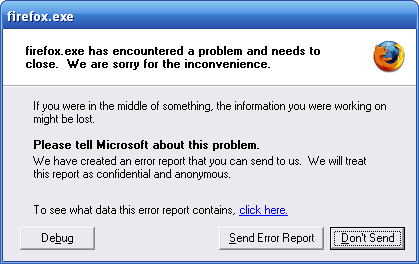
Nothing is more irritating than a program crash…. except the message that follows.  Would you like to send this data to Microsoft?  Send?  Don’t Send? 

firefox_crash1.png

This is a little more complicated than most of the tips I’ve posted.  It involves editing the registry.  This can be dangerous territory.  You may want to have the local computer expert do this one for you.

Click Start, Run and type Regedit
Press Enter

Find this key.

HKEY_LOCAL_MACHINE\SOFTWARE\Microsoft\PCHealth\ErrorReporting

Under this key is DoReport. DoReport can have one of two DWORD values.
1 = Send Reports
0 = Don’t Send

Set the DWORD value of DoReport to 0. That will end the irritating message and let you continue with your life a little quicker when a program crashes.

TSPY=0.12

Posted in edtech, efficiency | Tagged , | Comments Off on Efficiency Tip #85 – Crash Reporting

Missing Marker – fixed

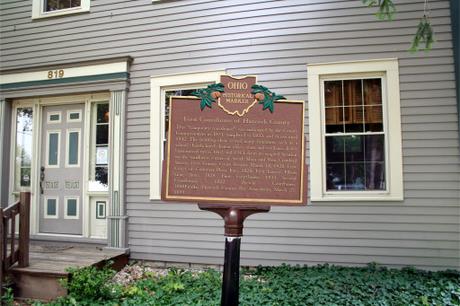
Yesterday we looked over the Findlay map and noticed there were several markers right under our noses that we had not photographed.  We had a lunch excursion and found most of them.

The first Hancock County courthouse is pictured below.  The people that own the property weren’t sure we were at the right place.  You can clearly see the pedestal in the location in front of the house where the Ohio Historical Society places the marker.

img_0870.JPG

The people at the house said the marker wasn’t there when they moved in.  We “Photoshopped” it back in (see below).

missingmarker-hancock-county-courthouse.JPG

The marker says the Historic Preservation Guild of Hancock County is one of the sponsors.  Tomorrow we intend to find out if these people know the where abouts of the sign.

We did have another interesting interaction with someone at a site.  The St John’s Evangelical Lutheran Church is suppose to have a marker.  According to the OHS, this is one that I drive past every day.  That church is half way to the University, right across the street from BestBuy.  I was surprised that I had never seen it.  I was more surprised that the pastor of the church had never seen it.  We walked around the building just to make sure there was not something hiding in one of the bushes.  The pastor pointed out the cornerstone from the 1901 church which was at another location.  They moved that cornerstone to this building when they built it in the 1960’s.  He did give us directions to the site of the old building.  He said the marker might be there.  We plan to check that out tomorrow.

Tagged | Comments Off on Missing Marker – fixed

Efficiency Tip #84 – Desktop Cleanup

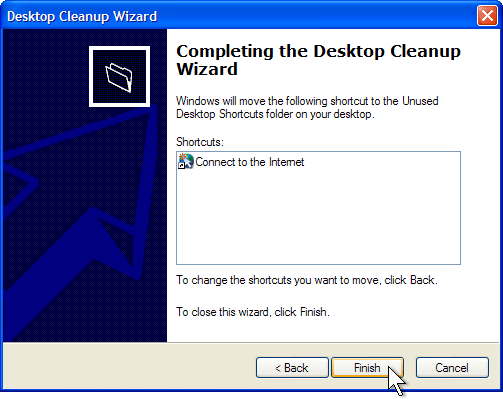
 As I said before, I don’t use the desktop to store files.  I keep just one shortcut on my desktop.  This doesn’t stop Windows from running the Desktop Cleanup Wizard every couple of months.  That’s when this screen pops up and tries to remove anything I have not used “recently” from my desktop.  The killer thing… it wants to create a new folder on my desktop called “Unused Desktop Shortcuts” and place all the “unused” icons in there.

desktopcleanup.gif

For all I know, after another 60 days it might ask to remove the folder it created to hold the icons I don’t use.

1 – Don’t use your desktop to store files.
2 – If you break rule #1, you don’t want to be bothered by this utility that is continuously running in the background waiting to pounce on the 60th day.

Here are instructions to turn it off.

http://support.microsoft.com/kb/320154

TSPY=0.06

Posted in edtech, efficiency | Tagged , | 2 Comments

Efficiency Tip #83 – File Extensions – ON

I have never been able to understand why the default setting in Windows is to turn off all file extensions.  File extensions are the three letters at the end of a file name that let you know what type of file you have.

.DOC is a Word document
.XLS is an Excel spreadsheet
.TXT is a plain text document (no formatting)

Here is an exhaustive list.

Out of the box, Windows hides the last three letters.  Apparently, it is just too technical for people to see and would confuse everyone.  As a result, I get a lot of files from people with double extensions: assignment01.htm.txt

When you double-click a file, Windows will open the application associated with the three letter extension.  The problem is that you can’t see the three letter extension.  Here is where it causes problems.

picture.jpg
picture.gif
picture.png

All three of the above files would appear as “picture” if the file extensions were turned off.  All are graphical (bitmap) formats.  If you need a select a specific format, there is no way to distinguish the three files.

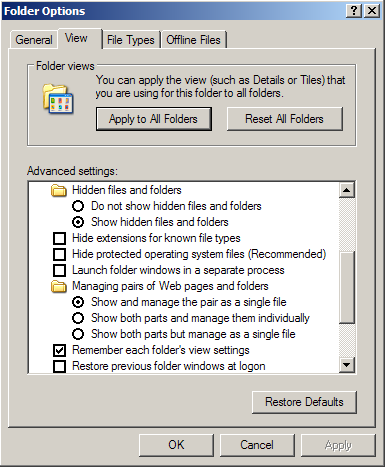
This is an easy thing to fix.  Open up Windows Explorer.  Click the Tools menu and select Folder Options.  The window below will open.  Click the View tab.

fileextensions.png

Uncheck the “Hide extensions for known file types” box.  Click OK.

Posted in edtech, efficiency | Tagged , | Comments Off on Efficiency Tip #83 – File Extensions – ON