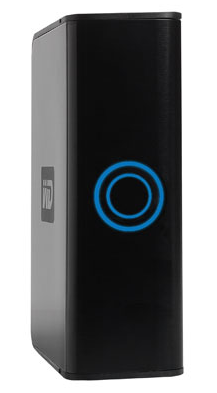
 Every two years I get a new computer. I’ve done this for the past twenty years. On top of that I always have a laptop or two that I use along side my desktop. Several years ago I started using external hard drives for most of my storage. There are several benefits to doing this.
1 – I can move the hard drives to a new computer simply by unplugging from the old and plugging into the new.
2 – External drives make perfect backup drives that can be easily moved off-site. During my recent vacation, I took three external hard drives with me just in case my house blew up while I was gone.
3 – Most of your files will be data not programs. I have 25 gigabytes of programs installed on my computer and several hundred gigabytes of data. My data files are the most valuable. I created them. I want them backed up and I need to move them to any computer I use. External drives are perfect for data.
4 – External drives are inexpensive. At my last pilgrimage to BestBuy, they had a 160 GB USB drive for $75.
When using external drives, it is important to keep things consistent. For instance, my music is always on the M: drive. I have an external drive with my music. Using this technique – http://support.microsoft.com/kb/307844 – I change the external music drive letter to M: on every computer that uses that external drive. By doing this, I can unhook the drive from one computer, go to another and the same drive letter is used. Music is always on the M: drive just like pictures are always on the P: drive.
Before you rush out and buy an external drive, check your computer to see what technologies are available. External drives come in three basic flavors: USB, Firewire and Ethernet. You will pay the most for an external drive with an Ethernet connection. On top of that, unless you have a network switch, you won’t be able to attach the external drive to your network. You will most likely use a USB connection to attach an external drive. Make sure your USB port on your computer is USB 2.0. Older USB connections (1.x) will be too slow to be useful. Check your computer’s documentation to find out what you have. If your computer is two years old or newer, you probably have USB 2.0 connectors. If you have a Macintosh, you will have Firewire and USB connectors. This means you can use either to connect an external drive.
You can also pay a little more and get an external drive with multiple interfaces. There are some circumstances where you might need a drive like this. Depending on your budget, you may find the extra options handy.
TSPY=2.42

 I have talked before about the fact that I have a lot of picture files. Like most digital cameras, mine names all the pictures with sequential names: IMG_0001, IMG_0002, etc.

 Windows has many options that are designed to make the experience of using the operating system more enjoyable. There are animations, fading effects, drop shadows and many other things that can make objects in the interface look better. Unfortunately most of these features will slow your computer down just a little. With enough of them running on your system, you may notice the impact on your computer’s performance.
 If you are running Windows XP, you need 1 GB of RAM. If you have Vista, double it to 2 GB. To find out how much memory your computer has, press