Web 2.0 Backpack: Web Apps for Students

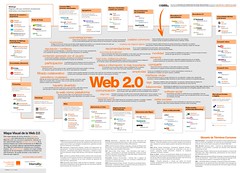
It looks like it is already time to start thinking about going back to school.  Here is a nice list of student applications using web 2.0 technologies.

Web 2.0 Backpack

There are quite a few on the list I have not heard of.  Nine of them are mind mapping applications and wikimindmap isn’t on the list.

For some reason, Google is included but not Google Scholar.  Anyone else using a web 2.0 application with students?  I use Scuttle for class work, but point student to del.icio.us for personal use.
Posted in edtech | Tagged | Comments Off on Web 2.0 Backpack: Web Apps for Students

Efficiency Tip #63 – Volume Control

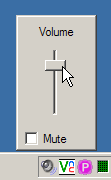
volumecontrol.pngOn my desktop computer I use the volume knob on my speakers to control the sound level.  On my laptops I can’t do that.  For quick access to the volume I have placed the volume icon in the taskbar.
 To do this, open the Control Panel.  Double-click Sounds and Audio Devices.  When the Properties window opens, check the box in front of Place Volume Icon in the Taskbar.  This will place the icon in the taskbar.  At any time click the icon once and the volume slide bar (pictured above right) will appear.  If you double-click the icon the advanced volume control window will open.  This will let you adjust individual components – CD, Wave/MP3, Line-In and Microphone.

If you are ever in a meeting and your computer suddenly plays a loud sound, you can quickly turn it down.

TSPY=1.29

Posted in edtech, efficiency | Tagged , | Comments Off on Efficiency Tip #63 – Volume Control

Efficiency Tip #62 – Take A Picture

It will last longer. 

Last year I was installing a new video card into my computer.  The instructions said that I should write down the serial number printed on the card before installing the card inside my computer because the number was needed during the software installation process.  There were three or four numbers and none was labeled as the serial number.  I hate to write down long strings of seemingly random numbers.  I always transpose a couple of the digits and then I’m stuck.

serialnumber.JPG

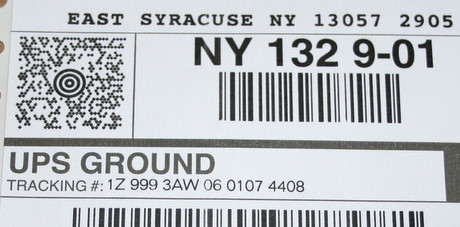
I had just uploaded some pictures to my computer and my camera was right in front of me. Why write something down when I can take a picture of it. My camera can take a very high resolution picture and I have a macro lens for getting in close.  Two seconds later I had a nice picture of all those numbers.

That gave me an idea.  Why not keep track of all my important “numbers” with pictures.  It’s like using a photocopy machine, but much more versatile.  Now I take pictures of anything more complicated than a phone number.  The insert is a UPS tracking sticker for my kid’s Nintendo DS.  I stuck it on the box and snapped a picture.  I’ve done the same with all my serial numbers and key codes.  I have a folder on my computer named “serial numbers” and all the pictures go in there.

TSPY=0.56

Posted in edtech, efficiency | Tagged , | 1 Comment

wikimindmap.org

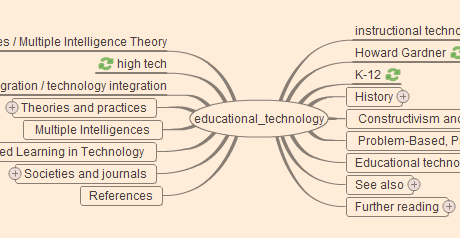
If you have used concept maps or mind maps, you will like wikimindmap.org

wikimindmap.png

This information visualization tool is a Flash-based front-end to Wikipedia.  From the wikimindmap site, enter a topic.  That term is placed in the center of a mind map using information from Wikipedia.  Be sure to select English if you are looking for English terms.

Clicking any word or phrase in the mind map will open its entry in Wikipedia.  Some items have expandable branches (designated with a plus sign).  The green arrows in the interface re-focus the mind map with the selected term in the center.

The whole structure is movable in the expected web 2.0 ways.  Dragging any part of the mind map will move the graphic.  A plus and minus on the interface permit zooming.

Posted in edtech | Tagged | 1 Comment

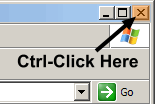
Efficiency Tip #61 – Ctrl-Click X

clickthex.pngIf you want Windows Explorer to open in a designated area of the screen, do the following.

1 – Position Windows Explorer in the exact location you desire.
2 – Re-size the window to the size you desire.
3 – Click the “X” in the top right corner while holding down the Ctrl key on the keyboard.

This will force Explorer to open in that exact orientation from now on.

As you use Explorer it will sometimes “remember” the last orientation in which you left it.  This shortcut forces it to remember everything as it was when closed using the Ctrl-Close method.

TSPY=0.56

Posted in edtech, efficiency | Tagged , | Comments Off on Efficiency Tip #61 – Ctrl-Click X