Efficiency Tip #14 – PowerPoint

Giving a bad PowerPoint presentation is one thing. There are a thousand things that can result in what has become known as death by PowerPoint. At the other end of the spectrum is what I call suicide by PowerPoint.
Suicide by PowerPointSuicide is creating a PowerPoint and then not knowing how to control the presentation. Getting started is easy. You can click the slide show icon in the corner, select the slide show menu or press F5. Any of these will get you started. I have seen people that couldn’t get the PowerPoint started. It left me wondering exactly how many times they had rehearsed.

Once you get going, there are so many ways to go to the next slide, you probably won’t have trouble unless you skip a slide and need to go back one. This is where a lack of preparation will kill you (and your presentation).

Here is everything you need to know to control your presentation like a seasoned veteran.

Start Show F5
Start Show at current slide Shift-F5
Next Slide Enter, Right Arrow, Down Arrow, Page Down, Space Bar, N
Previous Slide Backspace, Left Arrow, Up Arrow, Page Up, P
Go to First Slide Home
Go to Last Slide End
Make the screen Black B or Period
Make the screen White W or Comma
Hide the cursor A or =
End the presentation ESC or –

Microsoft has a comprehensive list. I have listed all the ones I have used.

If you give frequent presentations, I recommend a wireless controller. It will let you move away from the keyboard and give you single click Forward and Backward control. You can pick one up for as little as $25.

TSPY=Could Save Your Life… or at least a lot of personal embarrassment.

Posted in edtech, efficiency | Tagged , | 3 Comments

Conversations

Kathryn SullivanToday’s commencement address was delivered by Kathryn Sullivan, first American woman to walk in space. I thought her speech was interesting, informative and well received. She touched on most of the normal graduation speech topics: reflections of the past, excitement of the moment and expectations of the future.
The highlight was when she spoke of “conversation.” With all the technology we have available, we are becoming a people who don’t talk to each other. To “chat” means something completely different than it did ten years ago. We don’t ask face-to-face questions to each other. Instead we ask Google. As a result, many of us don’t even know our neighbors. Sullivan says we should have more conversations with each other. It’s good for everyone.

Personally, I have been working on this for more than a year. In the spring of 2006, I was reading an article on simple things that can improve brain efficiency. One of the things listed was having a conversation with a stranger. I don’t recommend this for children. The “don’t talk to strangers” rule still applies if you haven’t graduated from high school.

You only need to talk to someone for a minute or two. It’s pretty easy to do. The next time you are waiting in line somewhere (we wait in line all the time), talk to the person behind you. They will be in the line longer than you will be… because they are behind you. Conversation is easy because they likely have a cart full of possible topics. If there is no one behind you, talk to the cashier. Those people have thankless jobs. They will definitely talk to you if you talk to them. Don’t talk about the weather either. All the cashiers I talk with have name tags so I say something like, “Delilah. That is an interesting name. Are you named after someone?” That’s all it takes.

Did you ever notice how older people seem to know everyone? It’s because they have taken the time to have conversations with people.

Posted in edtech | Tagged | Comments Off on Conversations

Efficiency Tip #13 – Shift-Ctrl-Esc

Task ManagerThe next time you think your computer is running slow, check the CPU with by pressing Shift-Ctrl-Esc all at the same time. This will start the task manager. There are several tabs on the task manager that can give you an idea about the performance of your computer.
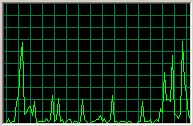
Click the Performance tab. If the processor is continuously at 100%, you may have a problem. The graphic at the top right of this post is my CPU Usage History as I write this post. You can see the processor has gone up and down as I interact with different software.

The Application tab shows each interactive application running on your computer. These are programs you have started, like Word, IE and Outlook. If an application has crashed, the phrase “not responding” will appear next to the program.

The Processes tab shows every process running on your computer. Processes include applications you have started plus system programs started by the operating system.

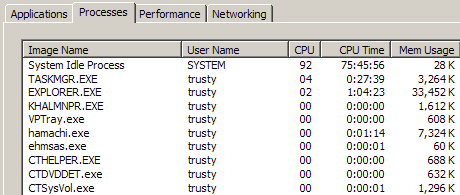
Processes Running

By clicking a column heading – Image Name – CPU – Memory Usage – the information is sorted by that category. You can determine which applications are using the most processing power and memory. In the graphic above, I have sorted by CPU. The System Idle Process is using 92% of the CPU. That means 92% of the CPU is idling or doing nothing. If you have an application that has pegged the processor (CPU=100%), you should take note of it. It could be something you have initiated. For instance, making a movie in MovieMaker will require nearly 100% of the CPU for an extended period. You may have other applications that do the same.

If a process uses 100% (or close to it) of the CPU, it will slow all other processes to a crawl. If you have an application that has gone out of control and you need to stop it, right-click it and End Process or End Task.

TSPY=1.60

Posted in edtech, efficiency | Tagged , | 3 Comments

iPodder/Juice

iPodderIt’s been about a year since I have written about podcasting. Back then I talked a little about what podcasting is and isn’t. I did not explain how to use an aggregator to automate the collect of podcasts.
When I first started to listen to podcasts I found out about iPodder. This stand alone program does for podcasts what Google Reader does for blogs. Before you can use iPodder you must find a podcast that someone is publishing. Here is a list of podcast directories at Wikipedia (if your school isn’t blocking it). Personally I listen to several TWiT podcasts. Let me give you the step-by-step process to subscribe to TWiT (one of the most popular tech podcasts). Go to the official TWiT page. Just below the Download MP3 file and play button is a drop down box which reads “Subscribe”. Select “RSS” from the drop down list. This will take you to a page with this URL: http://leoville.tv/podcasts/twit.xml

Copy that URL. That is the URL of the RSS feed and it is what your aggregator needs.

Install iPodder. Wait. You can’t install iPodder. Apple sues anyone using “iPod” in a product name. As a result, iPodder became Juice a while back.

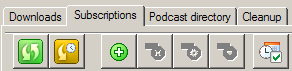
Install Juice. Run the program and select the Subscriptions tab.

iPodder Subscriptions Tab

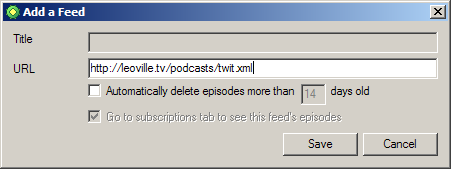
Then click the + (plus) sign in the green circle. This will bring up the dialog box where the URL of the RRS feed is entered.

RSS Feed

Enter the URL of the RRS feed. It is most efficient to copy and paste it. That’s it. You are subscribed to the podcast. Any new podcast will be automatically downloaded to the folder named:

C:\Documents and Settings\Username\My Documents\My Received Podcasts

You can copy those files to your MP3 player, burn them to CD or listen to them on your computer.

If you want to know more about Juice, check out the Juice User Guide.

Posted in edtech | Tagged | 3 Comments

Efficiency Tip #12 – Window-L

Many times in the classroom it is necessary to step away from the computer quickly. Your computer may have sensitive information that students should not see and certainly should not be able to modify. The quickest way to protect your computer is to lock it.Lock

Hold down on the Windows key and press L to lock the computer. This will not log you off the computer. All your programs will continue to run as you left them. When you return to your computer, enter your password and you will be right back where you left things.

There is another (slower) way of doing this. Press Ctrl-Alt-Delete and then click the Lock Computer button.

As an extra measure of security, you should setup your computer to automatically lock after a set amount of time. You can do this through the screen saver. There you will find a check box that says On Resume, Password Protect. You should check that box. This will automatically protect your computer if you do not have a chance to lock it manually.

TSPY=2.53

Posted in edtech, efficiency | Tagged , | 3 Comments