Efficiency Tip #40 – Calendar

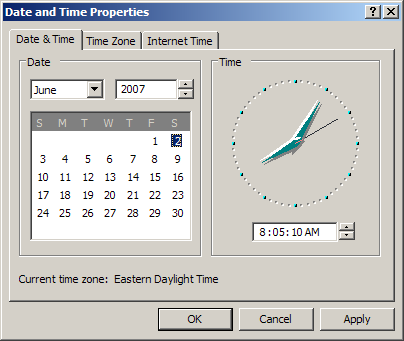
What day of the week is Christmas this year?  Quick!

quickcalendar.png

There are hundreds of calendar web sites and calendar applications, but the quickest way to open a calendar is in the bottom right corner of your screen.  Double-click the clock and you have a calendar.  You can go to any month and any year.  When you need a quick reference, nothing is faster.  Just make sure to Cancel when you are finished.  Otherwise you will change the date on your computer.

By the way, Christmas is on a Tuesday this year.  It took me four seconds to get to that information.  I’m still waiting on Google Calendar to open.

TSPY=1.19

Posted in edtech, efficiency | Tagged , | Comments Off on Efficiency Tip #40 – Calendar

Pligg

Pligg LogoJohn had a post yesterday about Digg.  I have been waiting for a good time to install my own personal version of Digg on my server.  Last night I did it.

http://www.trustyetc.com/news

I used a set of PHP scripts called Pligg.  It requires MySQL and takes five minutes to setup.

Pligg works just like Digg.  Anyone (with a verified account) can post a link to a news article.  Other people can “digg” the article.  Pligg has changed the verbiage to “vote” probably to avoid a lawsuit from Digg.  At any rate, the articles with the most votes make it to the front page.

See what you think.

Posted in edtech | Tagged | Comments Off on Pligg

Efficiency Tip #39 – Batch

If you have used computers for more than twenty years, this one will make perfect sense.  Otherwise, stay with me on this.

I talked about running the Command Prompt back in #13.  To get there we used the Windows-R shortcut to open the Run dialog window.  At that point, typing CMD saved time because CMD is only three letters.  It’s a quick thing to type.

What if you wanted to run Word by typing the command into the Run dialog window?  You could type

C:\Program Files\Microsoft Office\Office12\WINWORD.EXE

but that would take me about five minutes, given the number of typos I usually make.  What if you could just type “word” to make the program run?  That would be quick.

This is one of the efficiency tips that involves some work up front, but gives a long lasting benefit.  Before you start, make sure your “shortcut” isn’t already used by another program.  Click Start/Run and type the shortcut you want to use.  I will demonstrate “ppt” as my shortcut.  When I type “ppt” in the Run dialog window, I get an error saying the file can’t be found.  That’s good in this case.

To create your custom “batch” file you will need to open Notepad – Start/Run/notepad

In Notepad type the long “path” to the program you want to run.  Here is my shortcut for PowerPoint.

C:\Program Files\Microsoft Office\Office12\POWERPNT.EXE

Now save the file, but don’t use the default “TXT” ending.  Change it to “BAT” instead.  This is the file extension for Batch files.  In addition, save the file in your C:\WINDOWS directory.  By doing this your computer will always find it when you type its name.  I named my file

PPT.BAT

I used PPT because that is the type of file that is created by PowerPoint.  Now, to start PowerPoint,  I click Windows-R and type PPT.  It’s much quicker than clicking

Start/All Programs/Microsoft Office/Microsoft Office PowerPoint 2007

Different batch files can be created for Word and Excel.

DOC.BAT
XLS.BAT

TSPY=2.90

Posted in edtech, efficiency | Tagged , | 2 Comments

Lumosity – Brain Games

I am a big fan a brain games.  It’s probably because my brain is getting old and I am constantly trying to keep it from “thinking” it is getting any older.  I talked about the Brain Age game last year.  If you don’t have a Nintendo DS, try the Lumosity web site.
There are games that help your attention, memory, processing speed and cognitive control.  That last one is always the one that gets me.  In the Color Match game two words are shown.  Both words spell colors.  You have to decide if the word on the left spells the color of the letters on the right.

These games are good for all ages.  Best of all they keep track of your scores.  There’s nothing like a little family competition.

Posted in edtech | Tagged | Comments Off on Lumosity – Brain Games

Efficiency Tip #38 – Pin Things

pinnedarea.pngThe first tip I gave you was to use the Windows key to open the Start menu.  The top area of the Start menu is customizable and it is called the Pin area.  You can “pin” any application there giving you quick access to the things you use most.

You may have noticed the programs you use most are at the bottom of the start menu.  Windows will keep track of the six (that’s the default number but you can change it) programs you use the most and will automatically place them there.  The order of the placement is based on the number of times each program is used.  More use makes the program move higher in the list.  This is the “popular” list and it can change often.

If you want a “popular” program permanently placed at the top of the Windows Start menu (the Pin area), right-click the program in the Start menu and select Pin To Start Menu.  If you pin a popular program it will disappear from the popular area and reappear in the pin area.  Windows won’t show it in both places.

The program doesn’t have to be in the popular area to be pinned.  You can pin any shortcut or executable from any part of the Start menu.

You can also rearrange shortcuts in the pinned area.  If you want a certain program at the top of the Start menu, click and drag the shortcut to the location you desire.

TSPY=2.19

Posted in edtech, efficiency | Tagged , | 1 Comment